ComplyOS · Docs

Set up ComplyOS, then run your safety program on it

Part one takes a new workspace from invitation to ready: finding your way around, sites, policies, employees and roles, trainings, posters, inspections and your past years. Part two is everything you do from then on, from your dashboard and the first report to the year-end 300A, training, policies, gear and your own settings.

Part one

Getting started

Bridgemart sets up your workspace with you: your company, your sites and your agreement. These are the steps that make it yours, in the order that pays off fastest.

01Sign in and accept the terms

You get an email invitation from Bridgemart. Open it, sign in, and accept the ComplyOS Terms of Service on behalf of your organization. That is the only setup screen you see: the company details and agreement are already in place.
02Find your way around

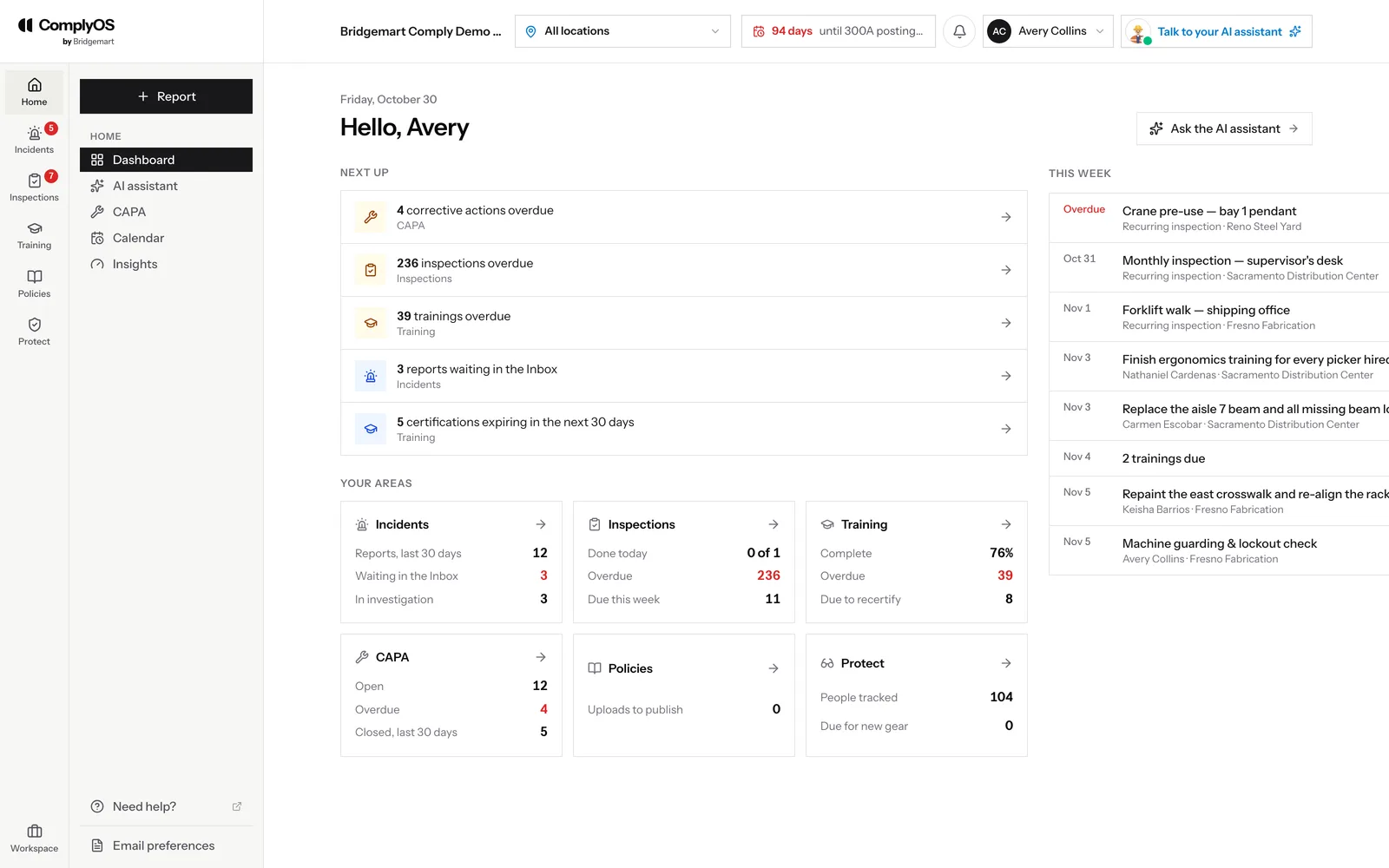
You land on your dashboard. Down the left is the rail, with every area of ComplyOS one click away: Home, Incidents, Inspections, Training, Policies and Protect, with Workspace at the foot. Pick an area and the column beside the rail shows only its pages, so you never wade through everything at once. A number on an area is how much is waiting for you there.

Corrective actions (CAPA) sit under Home, above the areas, because they tie everything together: an incident, a failed inspection or a policy change can each lead to a fix. Incidents and Inspections each have their own Corrective actions too, showing only the fixes that came from them. The logo at the top left always brings you back to the dashboard.

  • Incidents: the Inbox, cases (injury or illness reviews and safety reports), records (the 300 Log and the year-end 300A) and their corrective actions
  • Inspections: site inspections, daily meetings, QR posters and their corrective actions
  • Training: assignments; the library of courses, toolbox talks and posters; building courses; required trainings and in-person sessions; employee status and certificates
  • Policies: your JHAs, SWPs, written programs and manuals, plus upload, the public page and export
  • Protect: who has which gear, and when they can get new
The ComplyOS dashboard: the area rail on the left, Next up with everything waiting, each area’s figures and the week ahead

03Check your sites

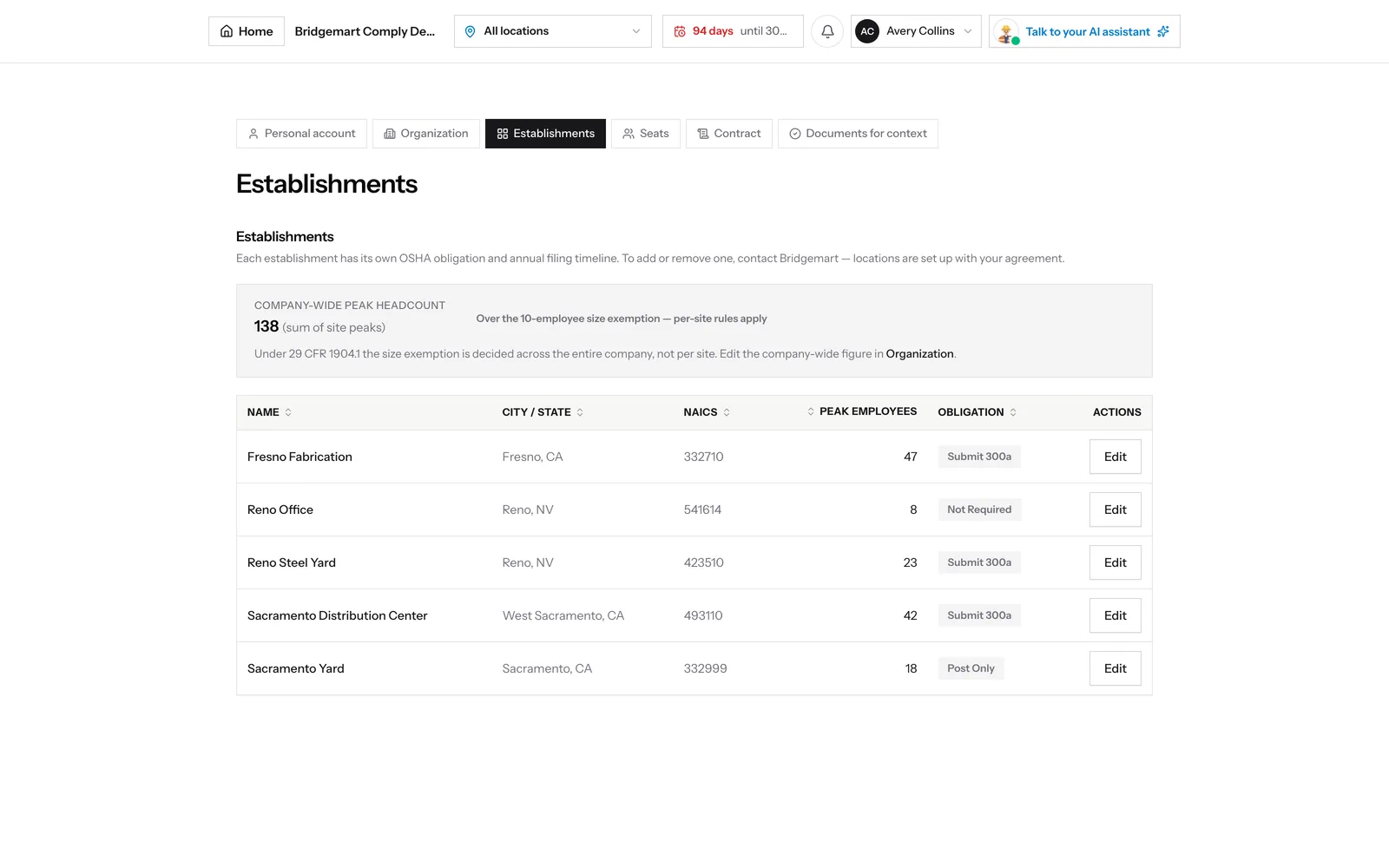
Under Settings → Establishments, each site has its address, NAICS code, peak headcount and its OSHA obligation: whether it posts and submits a 300A, posts only, or is exempt. Bridgemart enters them from your agreement; check them before your first report.

Establishments in ComplyOS: each site with its city, NAICS code, peak employees and OSHA obligation

04Upload your policies

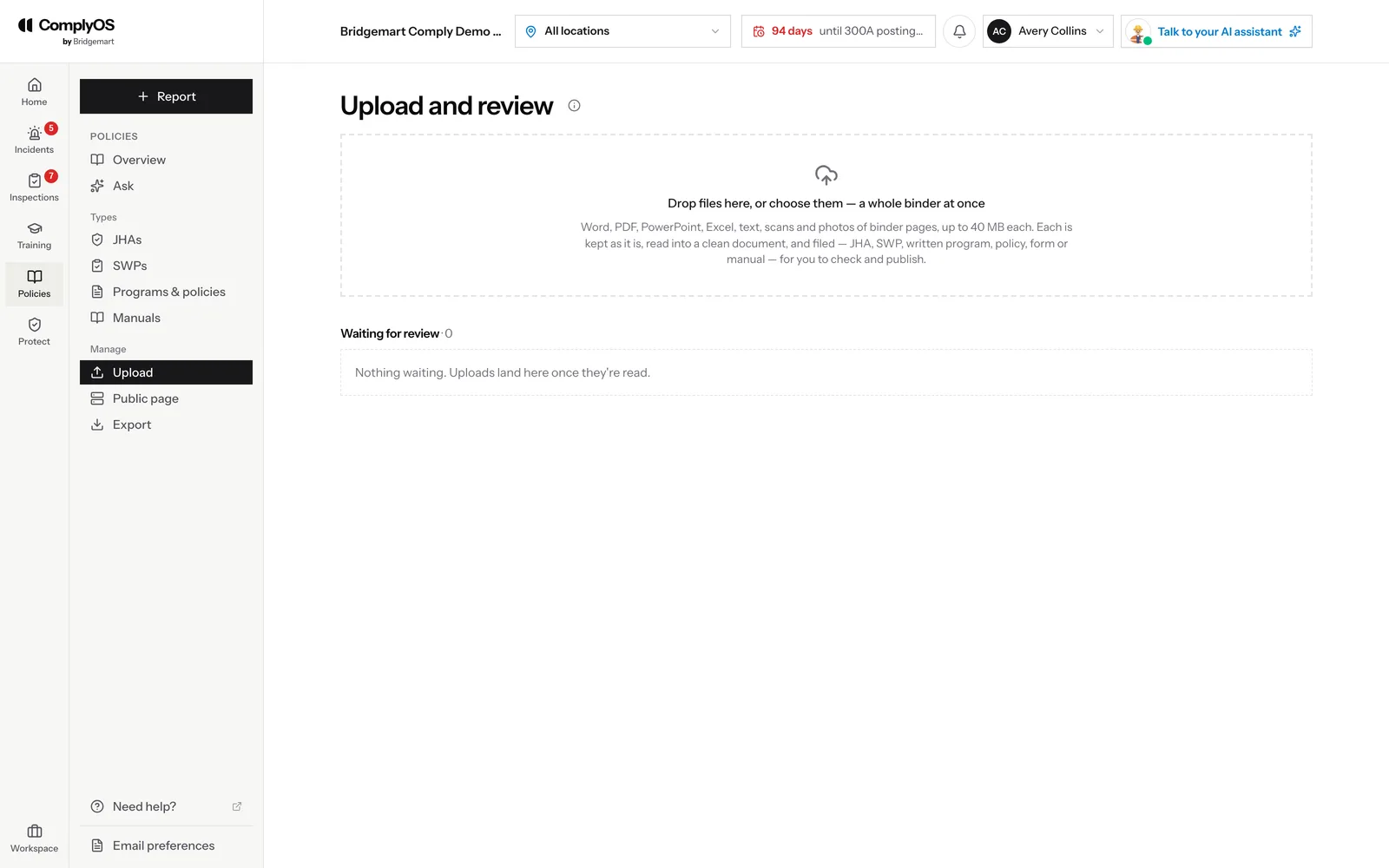
Under Policies → Upload, drop in what you already have — Word, PDF, PowerPoint, Excel, scans, even photos of a binder. The AI turns each file into a clean, searchable document, works out what it is (a JHA, an SWP, a written program like HazCom or lockout/tagout, a manual), and gives it a title. You review and publish.

Every change after that is recorded in the document’s changelog: what changed, why, and who approved it.

  • Upload a whole binder at once; duplicates, overlaps, unreadable scans and documents with no owner are flagged
  • Tie each JHA and SWP to the job titles and sites it covers
  • Employees read published documents and can ask questions about them
Uploading to the Policy Hub: drop files or a whole binder, then review what the AI made of them
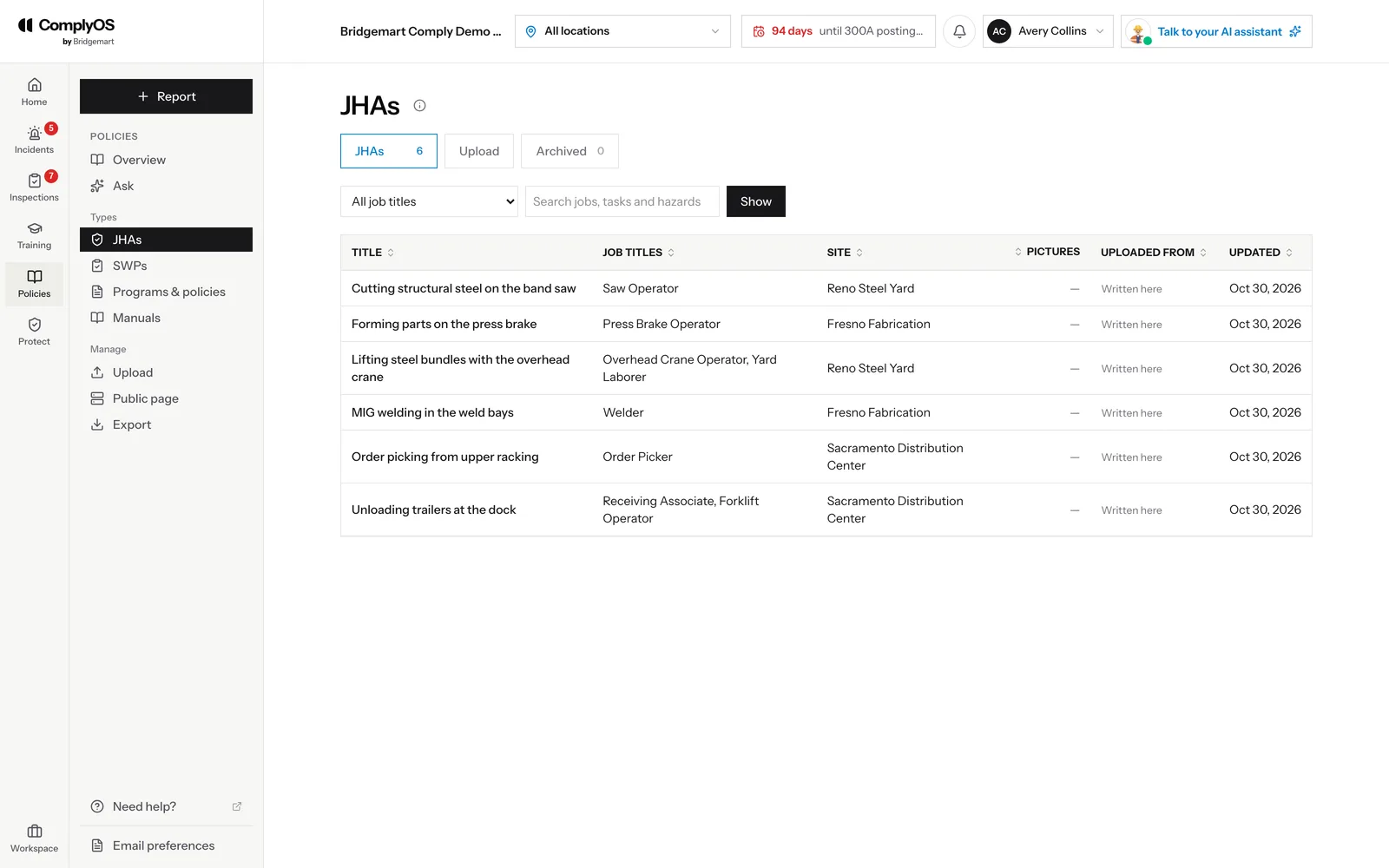
JHAs in the Policy Hub, each with its task, job titles, site and last update

05Bring in your employees

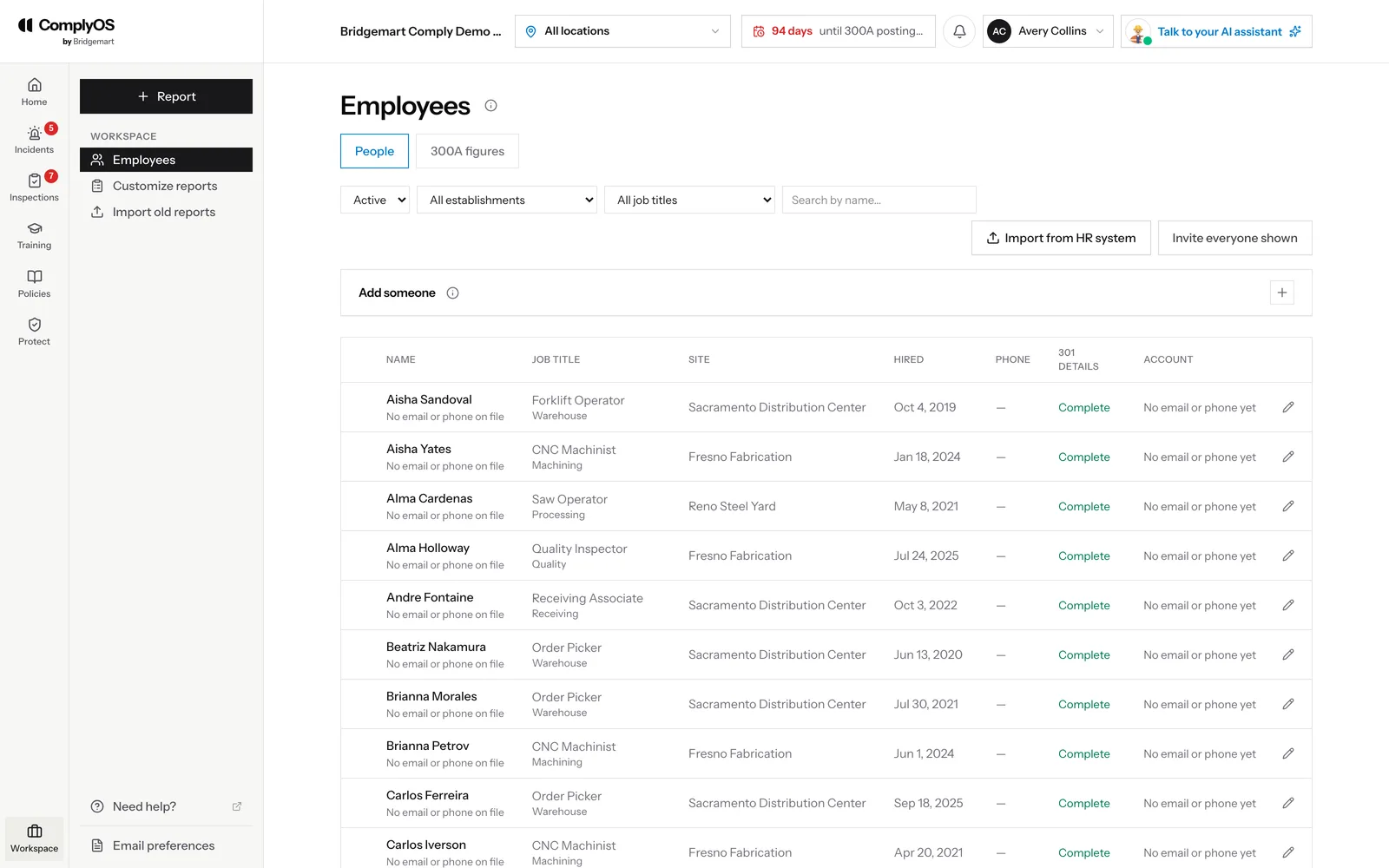
Under Workspace → Employees, the People tab is your roster across every site: who works where, the details an OSHA 301 still needs, and whether each person can sign in. Add people one at a time or import the file from your HR system. People who leave stay on file — the 300A still counts them — and move under Left.

The 300A figures tab is the same roster one site and one year at a time, with the annual average employees and hours worked the 300A asks for. The roster feeds everything else: the 300 Log’s employee details, the 300A’s headcount and hours, and who needs which training.

Employees in ComplyOS: the People tab with each person’s job title, site, 301 details and sign-in status
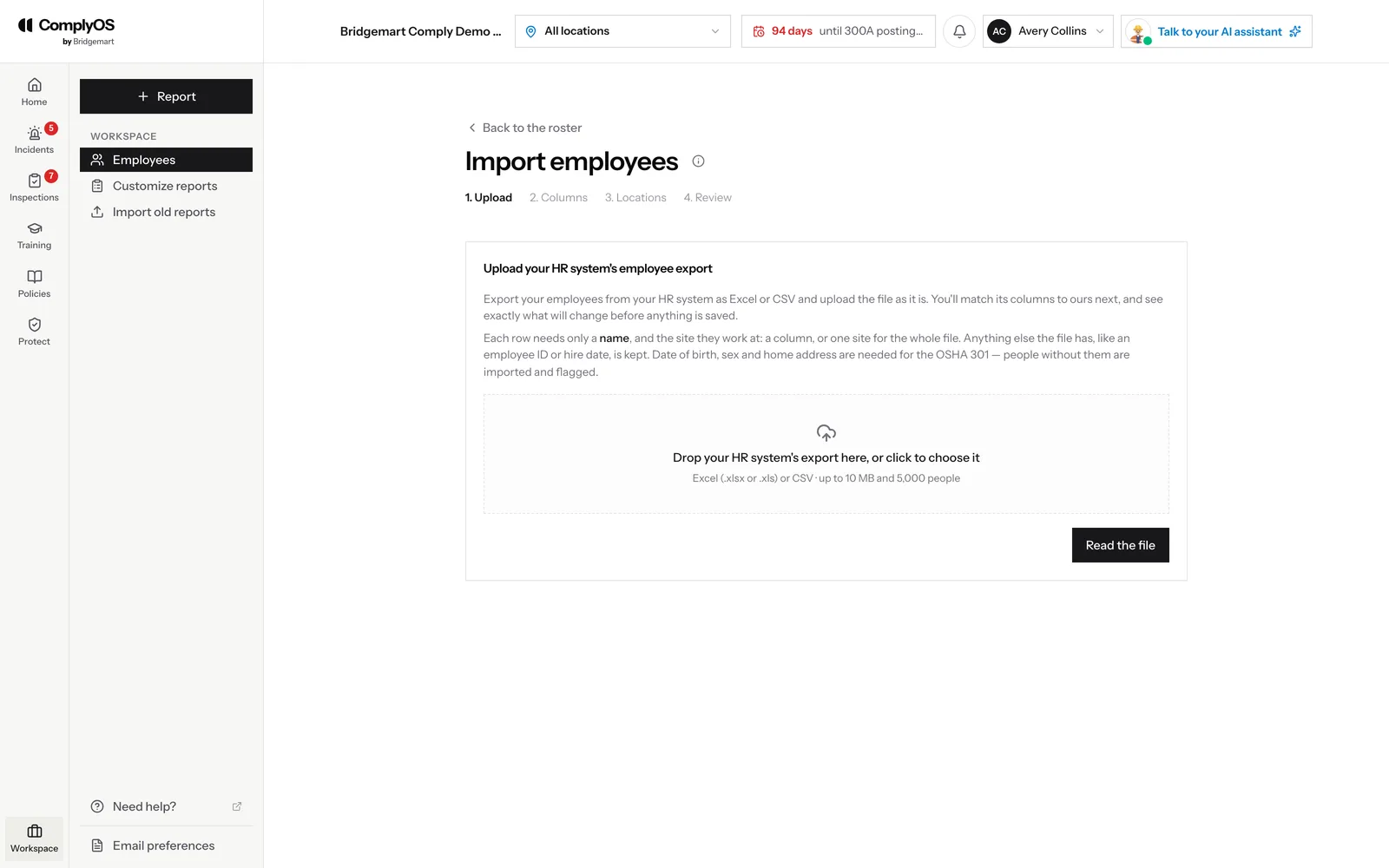
Importing employees from a spreadsheet or HR system file

06Send employee logins

An employee login lets someone file reports and act on what is assigned to them. Send logins from Employees: tick the people who need one, or invite everyone shown. A manager approves every login before it goes out, and an employee only ever sees their own reports, follow-ups and assignments — never anyone else’s.

07Add managers and set roles

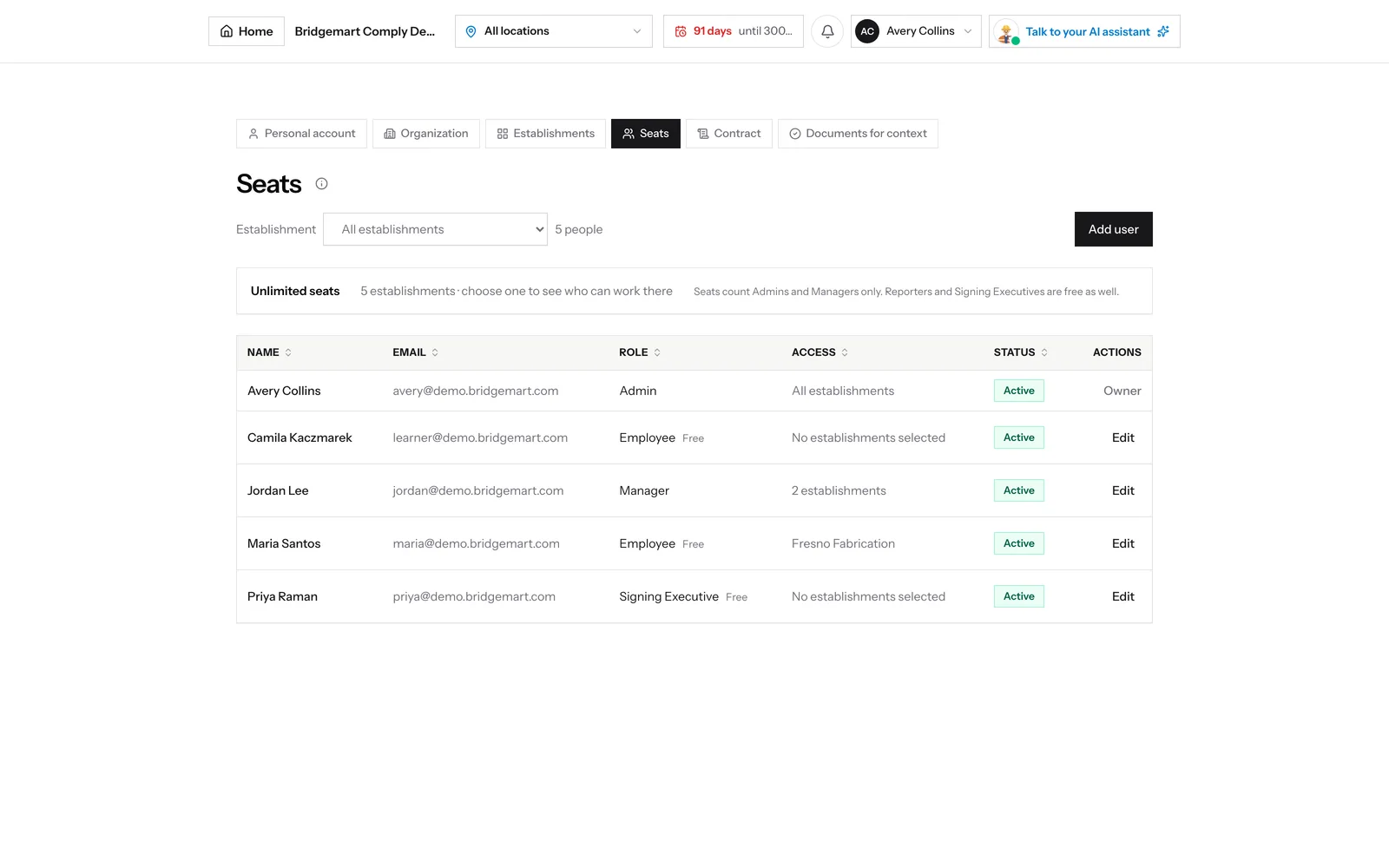
Under Settings → Seats, add the people who run the program and choose what each can do. Each person’s access can be every site or only the ones they work at, and the list shows who has which role and where.

  • Admin: everything, including settings, users and publishing policies
  • Manager: runs the day-to-day work at their sites — the Inbox, investigations, CAPA, inspections and training
  • Employee: files reports and acts on what is assigned to them, and nothing else
  • Signing Executive: certifies the 300A from an emailed link
  • Seats count Admins and Managers only; Employees and Signing Executives are free
Seats in ComplyOS: each person with their role, the sites they can see and their status

08Set required trainings

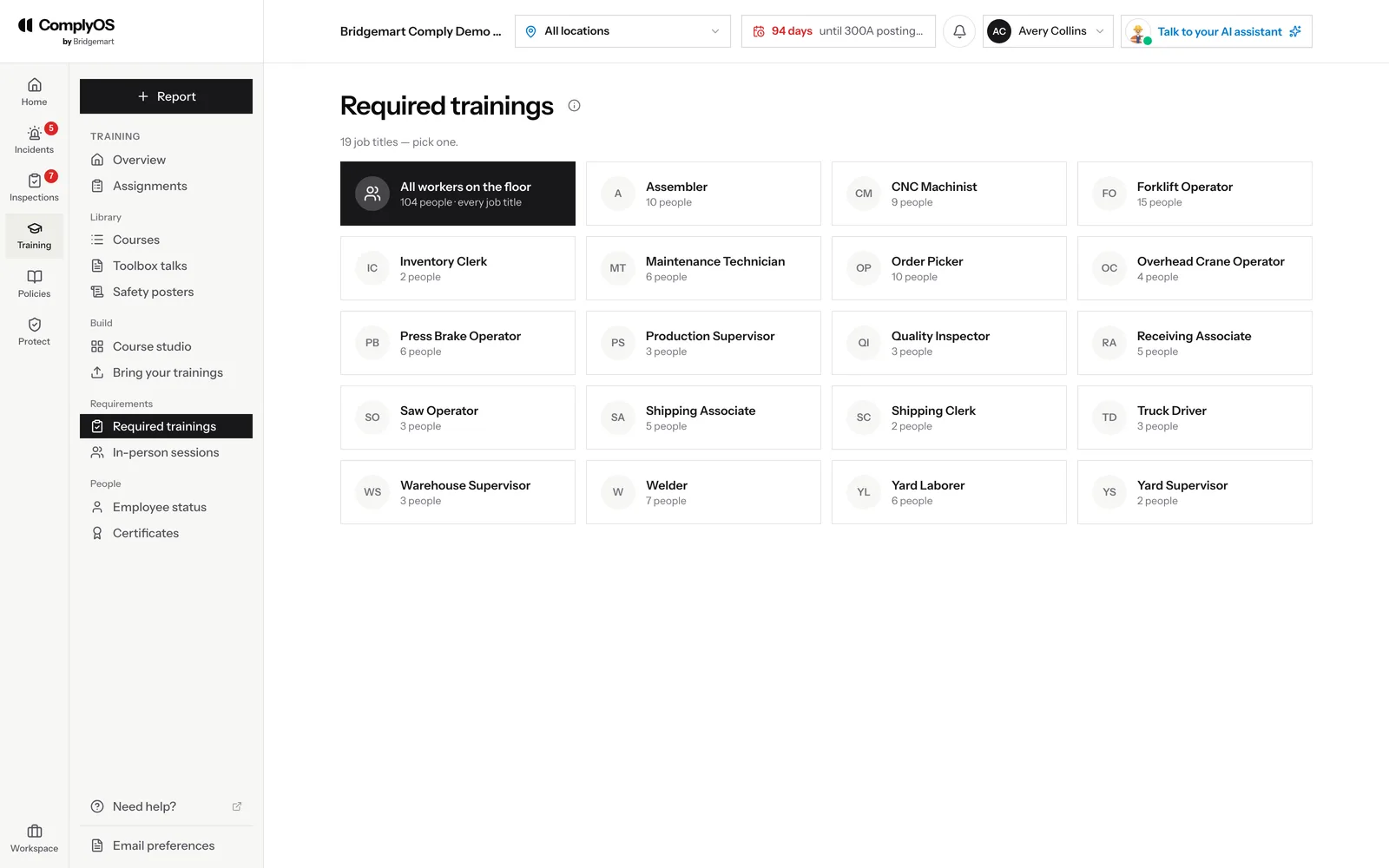
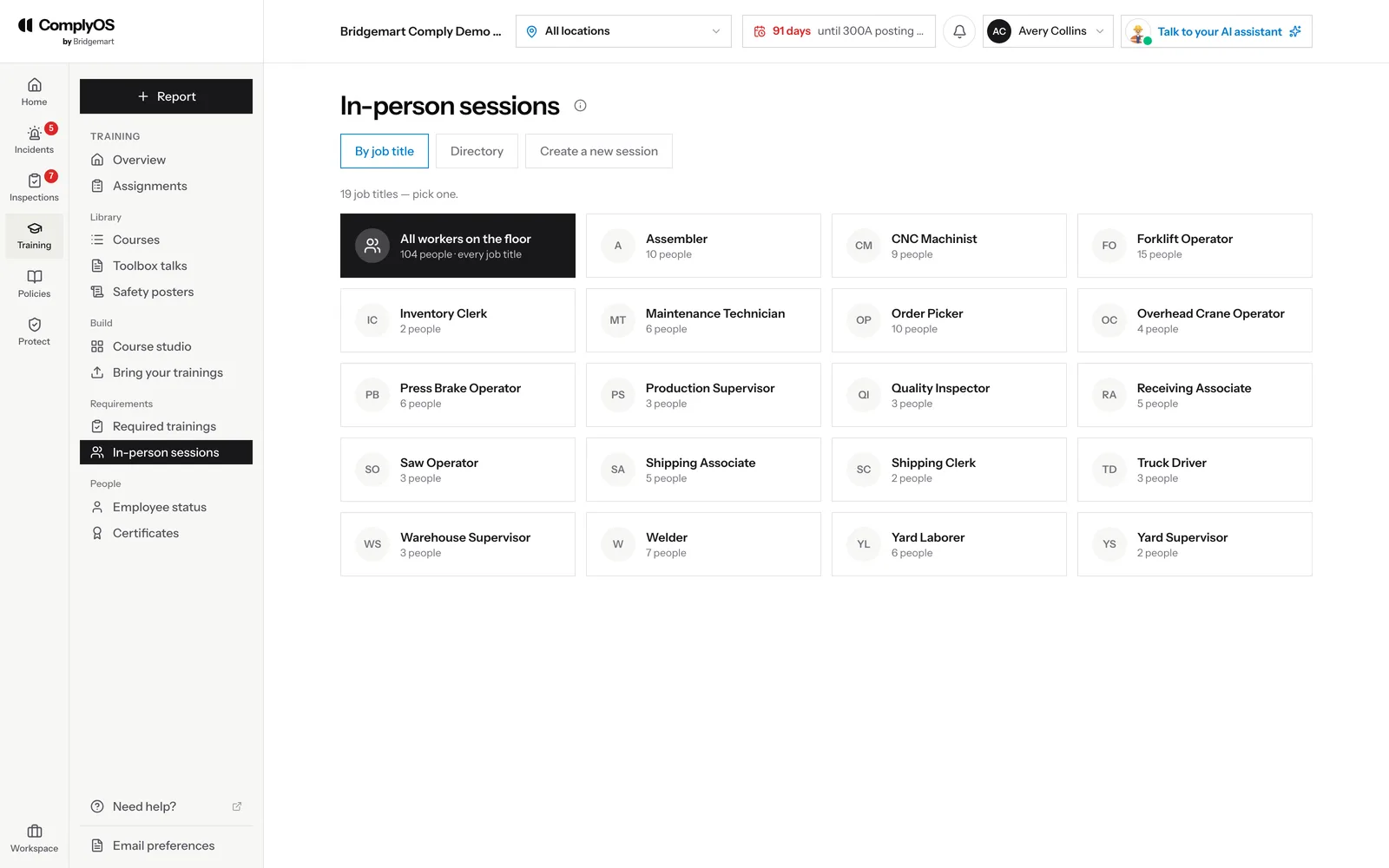
Under Training → Required trainings, pick a job title and choose the courses everyone in it needs. New hires are given their job’s training when you send their login, and recertifications come due on their own.

Required trainings, one tile per job title with how many people hold it

09Bring your trainings

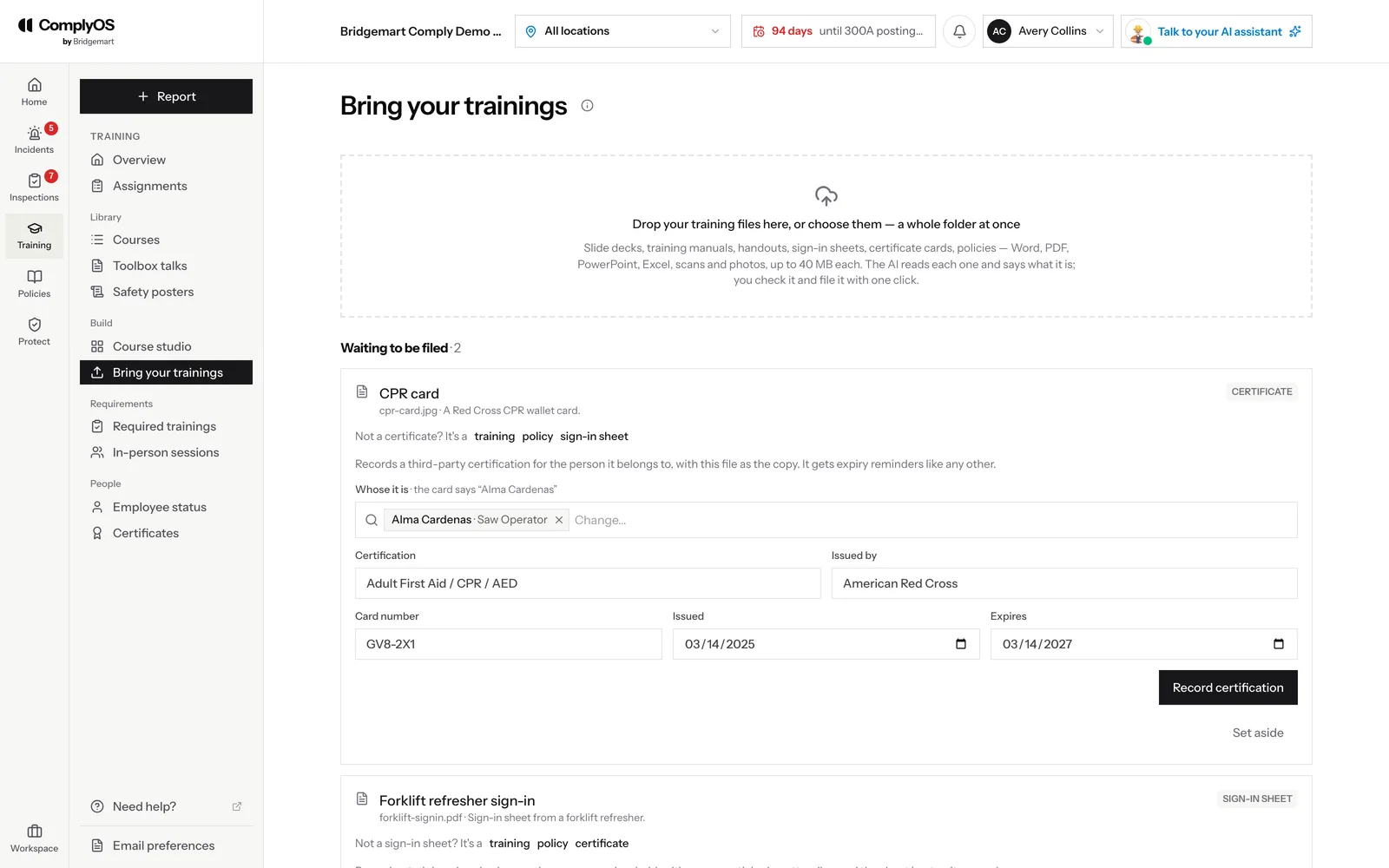
You already have training: slide decks, manuals, handouts, sign-in sheets from sessions you have run, people’s certificate cards. Under Training → Bring your trainings, drop them in — a whole folder at once. The AI reads each file and says what it is, and you file it with one click.

  • A training becomes a draft course, with a quiz if you want one; it is published only once someone approves it
  • A sign-in sheet records a session already held, with the names matched to your roster
  • A certificate card records that person’s certification, which then gets expiry reminders
  • A policy or procedure goes to the Policy Hub to publish
  • A training video is transcribed and built straight into a draft course, each lesson playing its own part of the video
Bring your trainings: uploaded files sorted by the AI, a sign-in sheet and a certificate card waiting to be filed

10Put up QR posters

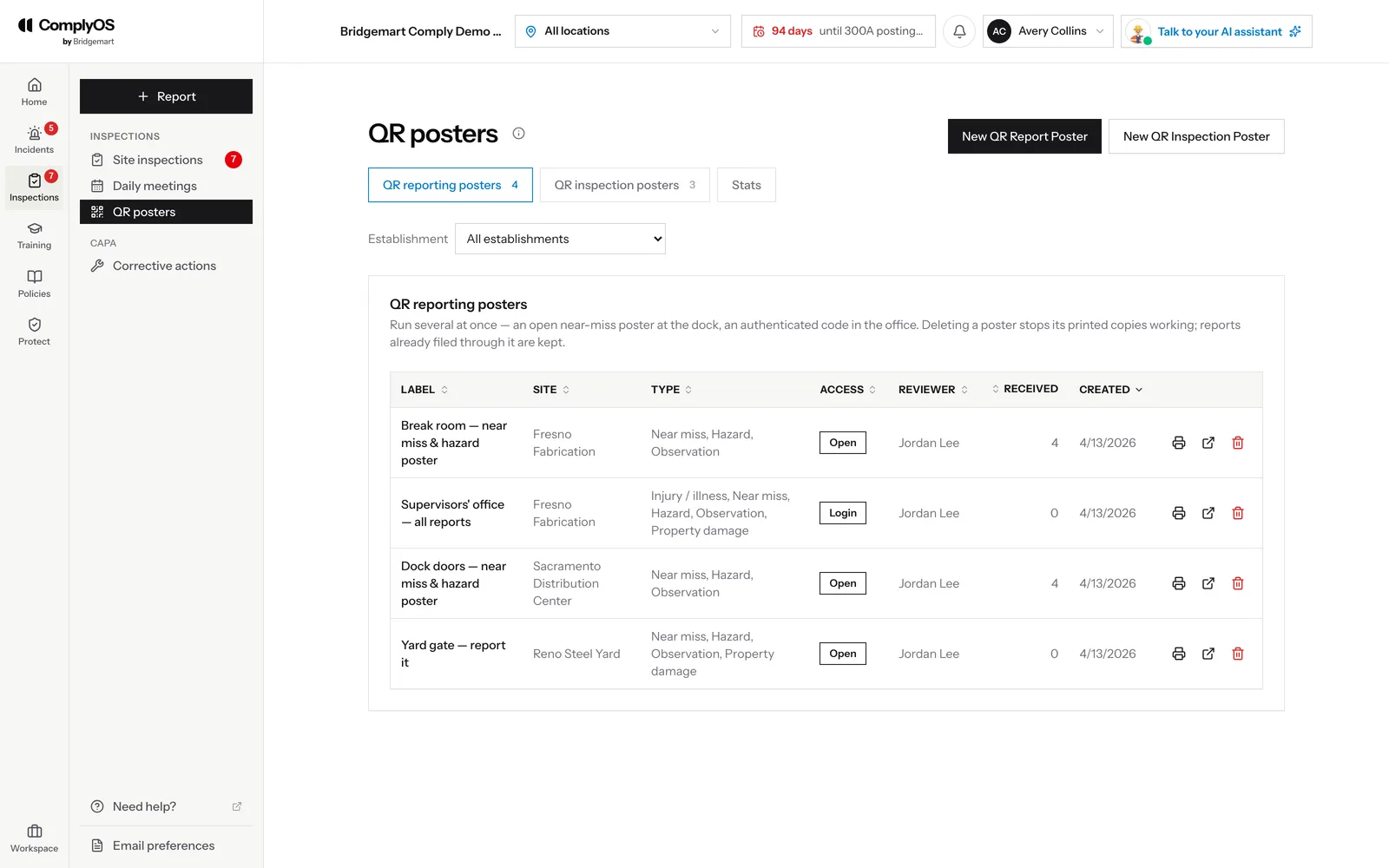
Print a QR poster for each place work happens. Anyone can scan it to report a near miss, hazard or observation on the spot — with or without a login, as you choose for each poster — and you pick who reviews what it collects. Inspection posters start a recurring check right where it is done.

QR posters in ComplyOS: each poster’s site, report types, access, reviewer and how many reports it has received

11Customize what reports ask

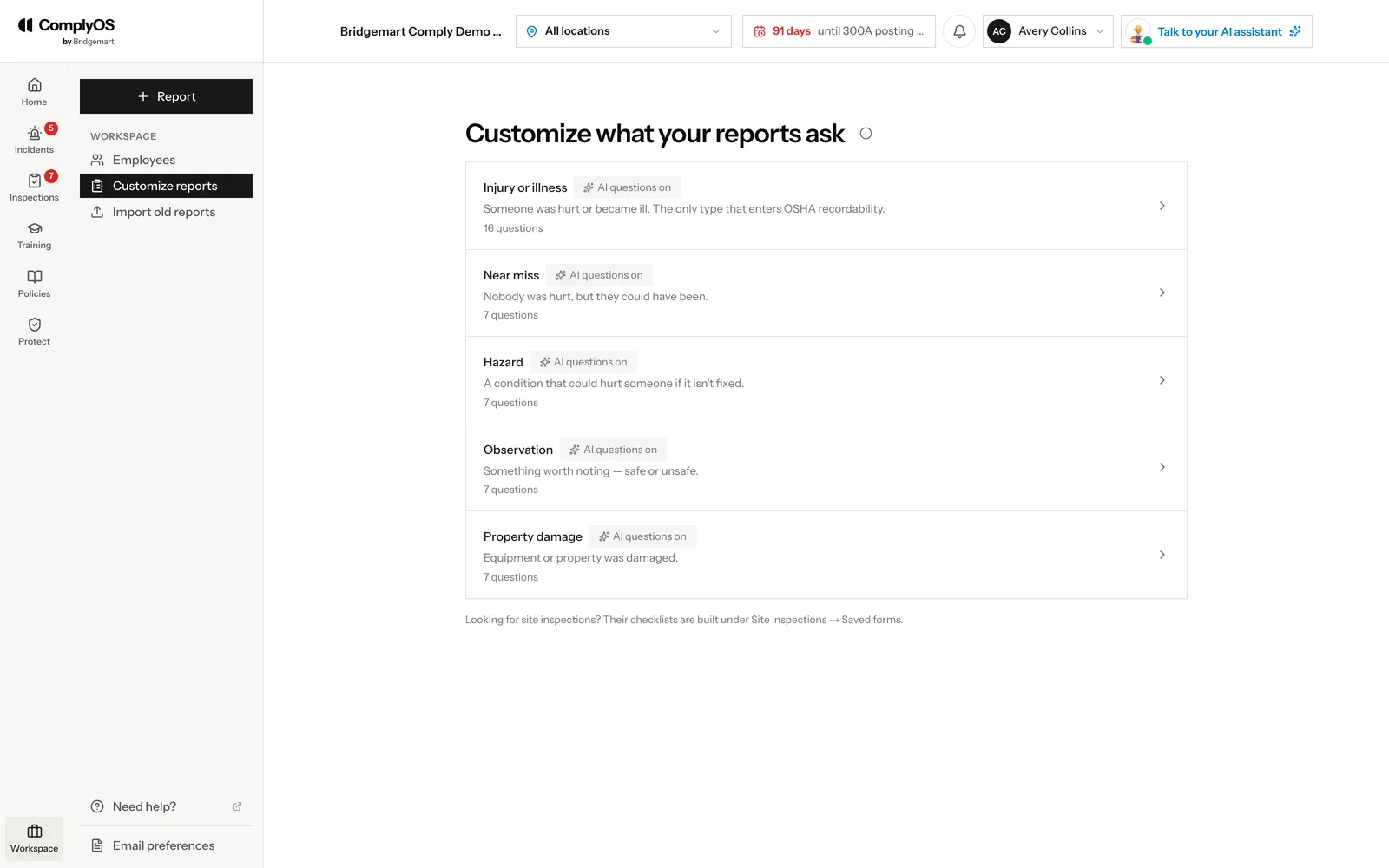
Under Workspace → Customize reports, each kind of report — injury or illness, near miss, hazard, observation and property damage — has its own list of questions. Add, reword or remove questions to match how your company works, and turn the AI’s follow-up questions on or off for each kind. Inspection checklists are built separately, under Site inspections → Saved forms.

Customize what your reports ask: each report type with its number of questions and whether AI questions are on

12Schedule inspections

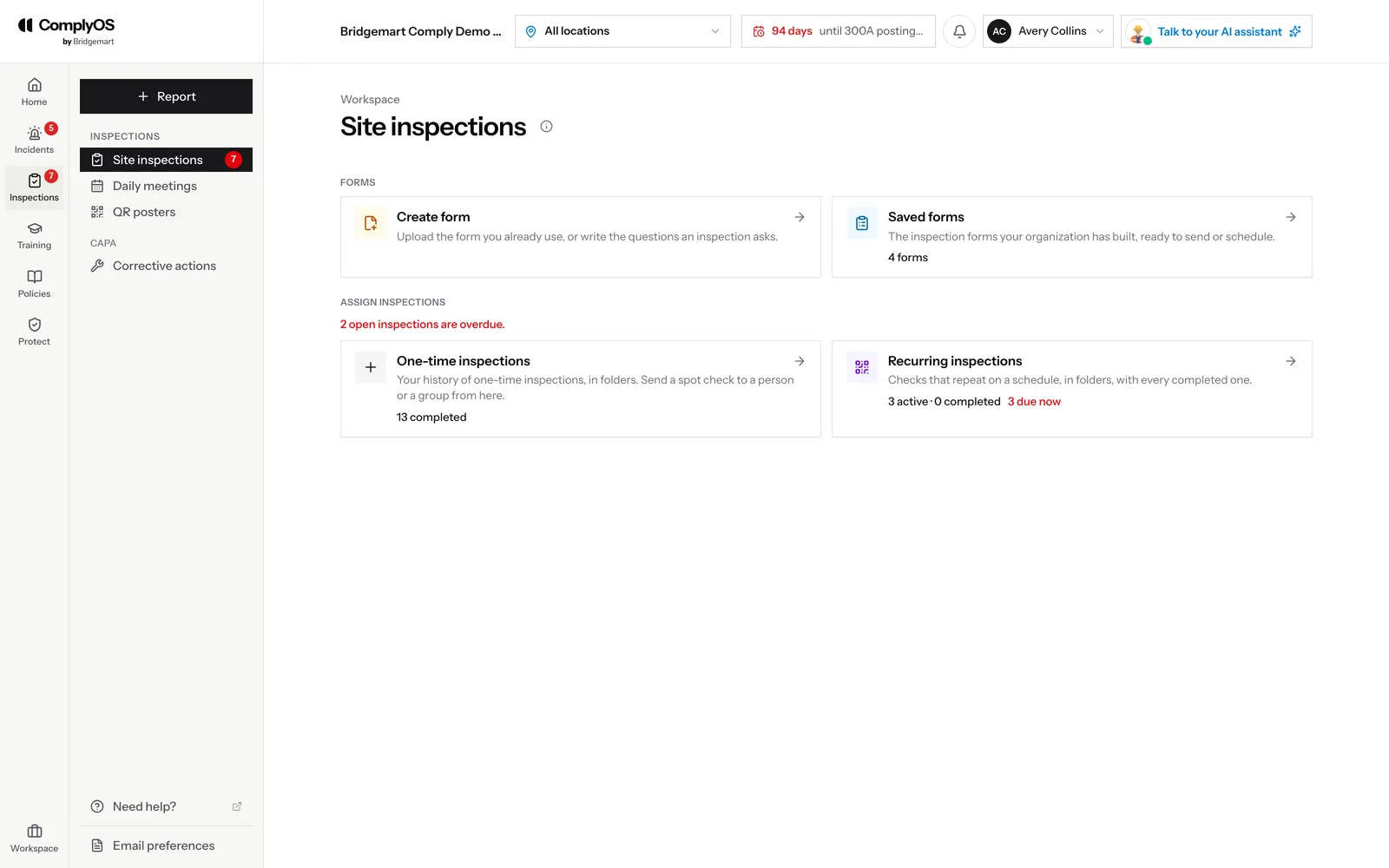
Under Inspections → Site inspections, create a form or upload the checklist you already use. Send a one-time inspection to someone, or set a recurring schedule for a site. Completed inspections are reviewed by the AI, and a failed check becomes a corrective action.

Site inspections: create a form, send an inspection, recurring schedules and completed inspections

13Bring in past years

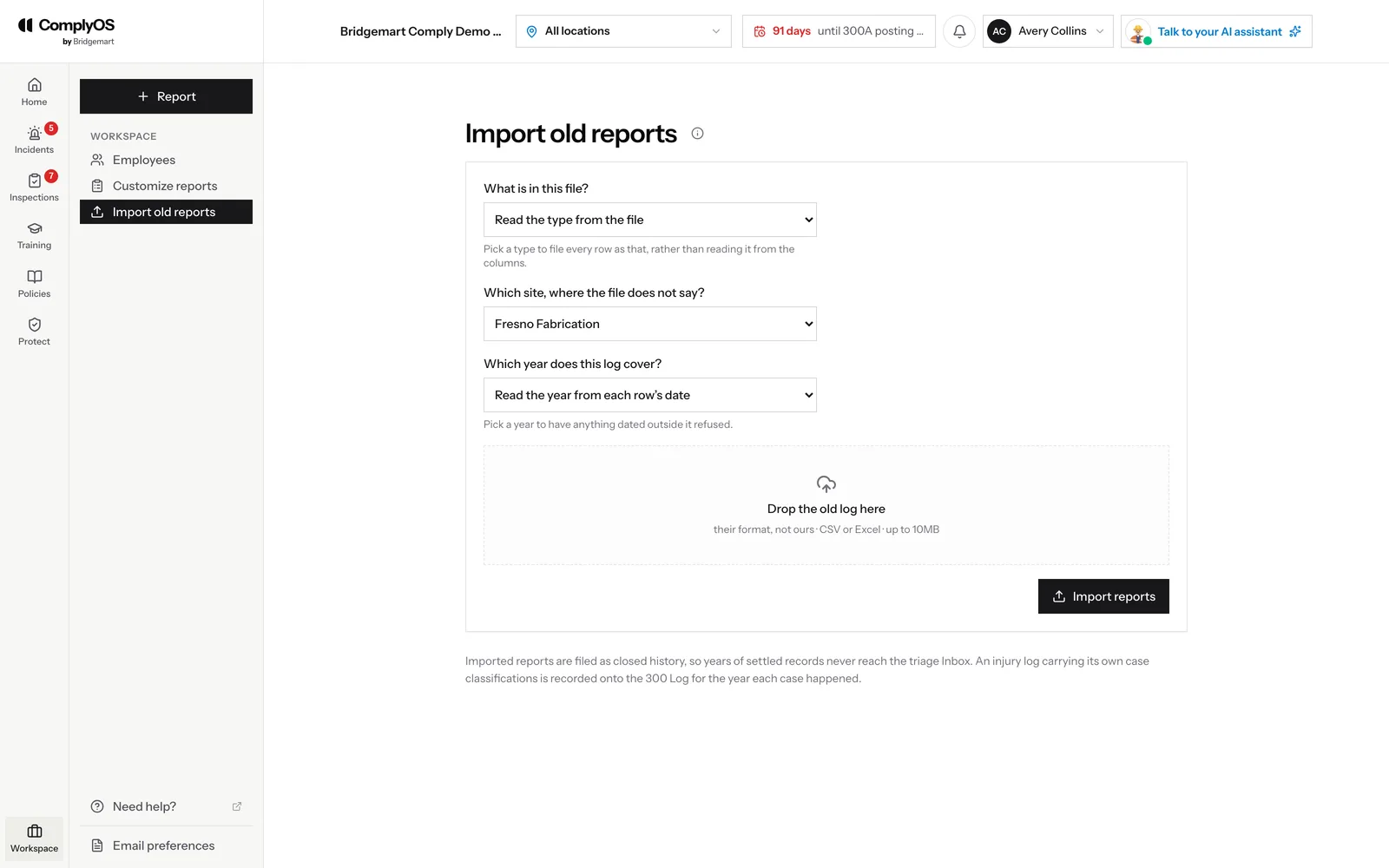
Your safety record did not start the day you signed up. Under Workspace → Import old reports, drop in the log you kept before — a CSV or Excel file in whatever format you used. Pick the site and year where the file does not say. Imported reports are filed as closed history, so they never land in the Inbox, and an injury log that carries its own case classifications goes onto the 300 Log for the year each case happened.

Under Home → Insights → Create history, import past OSHA 300 Logs and add the hours worked for each site and year. Past years then sit beside the years ComplyOS has recorded, as rates per 200,000 hours, so you can show how the program has changed.

Import old reports: choose what the file holds, the site and the year, then drop in a CSV or Excel log

Part two

Using ComplyOS every day

Once you are set up, the work follows one loop: something is reported, you decide what it is, you investigate, you fix it — and the OSHA records keep themselves. Around it sit the rest: insights and the calendar, daily meetings, training, your policies, gear and your own settings.

14Start from your dashboard

Every day starts on the dashboard. Next up lists everything waiting on you, across every area, most urgent first: injury reports to review, overdue corrective actions and inspections, overdue trainings, reports in the Inbox, certifications about to expire. Each line takes you straight to the work. When it is empty, you are caught up.

Below it, each area shows how it stands, and the week ahead lists what is coming from the calendar. A severe injury’s OSHA reporting clock shows at the top until it is reported. The logo always brings you back here.

15Report anything

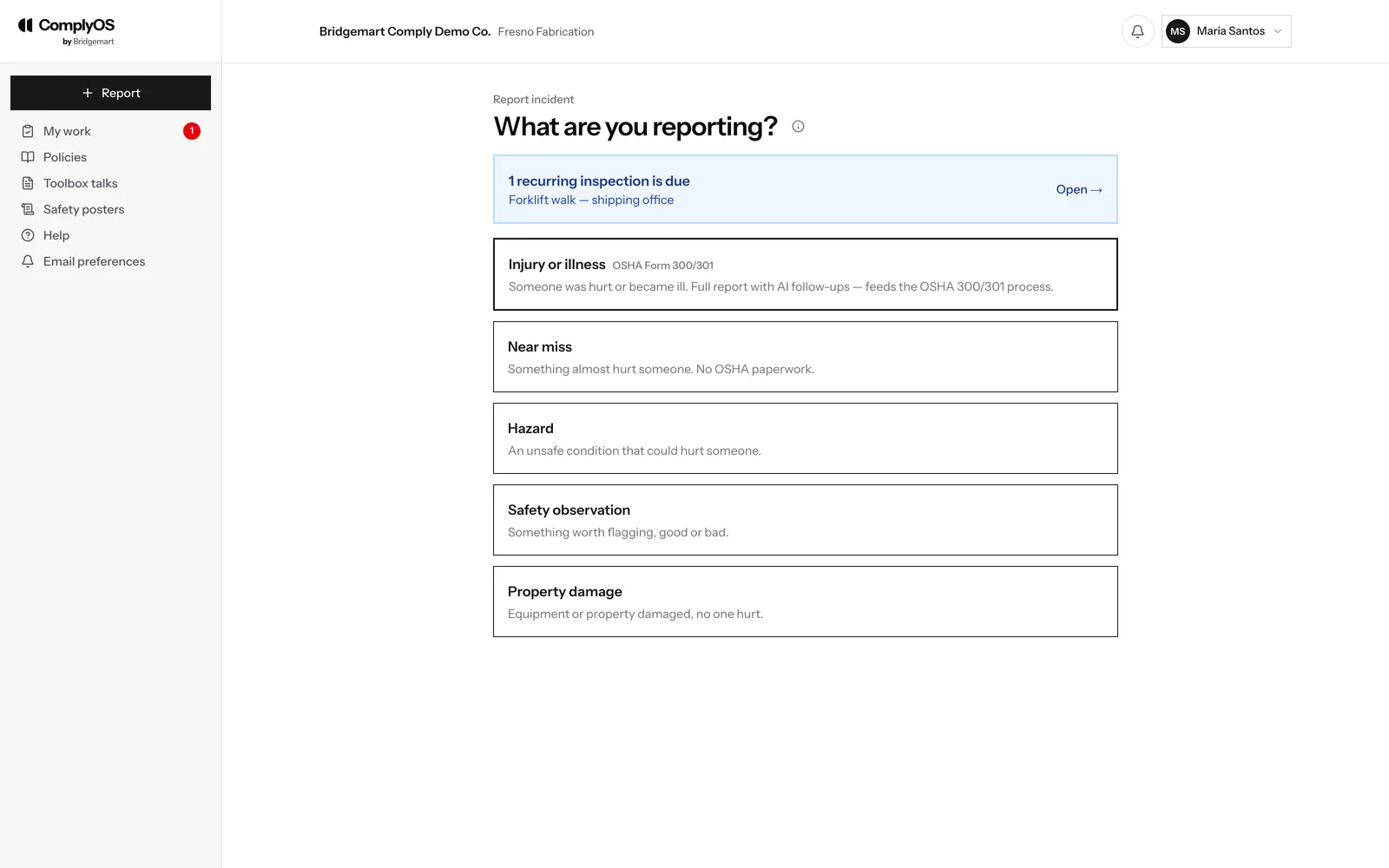
The Report button is on every screen, and the QR posters lead to the same form. Choose what happened: an injury or illness takes the full OSHA path, with the AI asking the follow-up questions a good investigator would; a near miss, hazard, observation or property damage takes under a minute.

Reporting in ComplyOS: injury or illness, near miss, hazard, safety observation or property damage

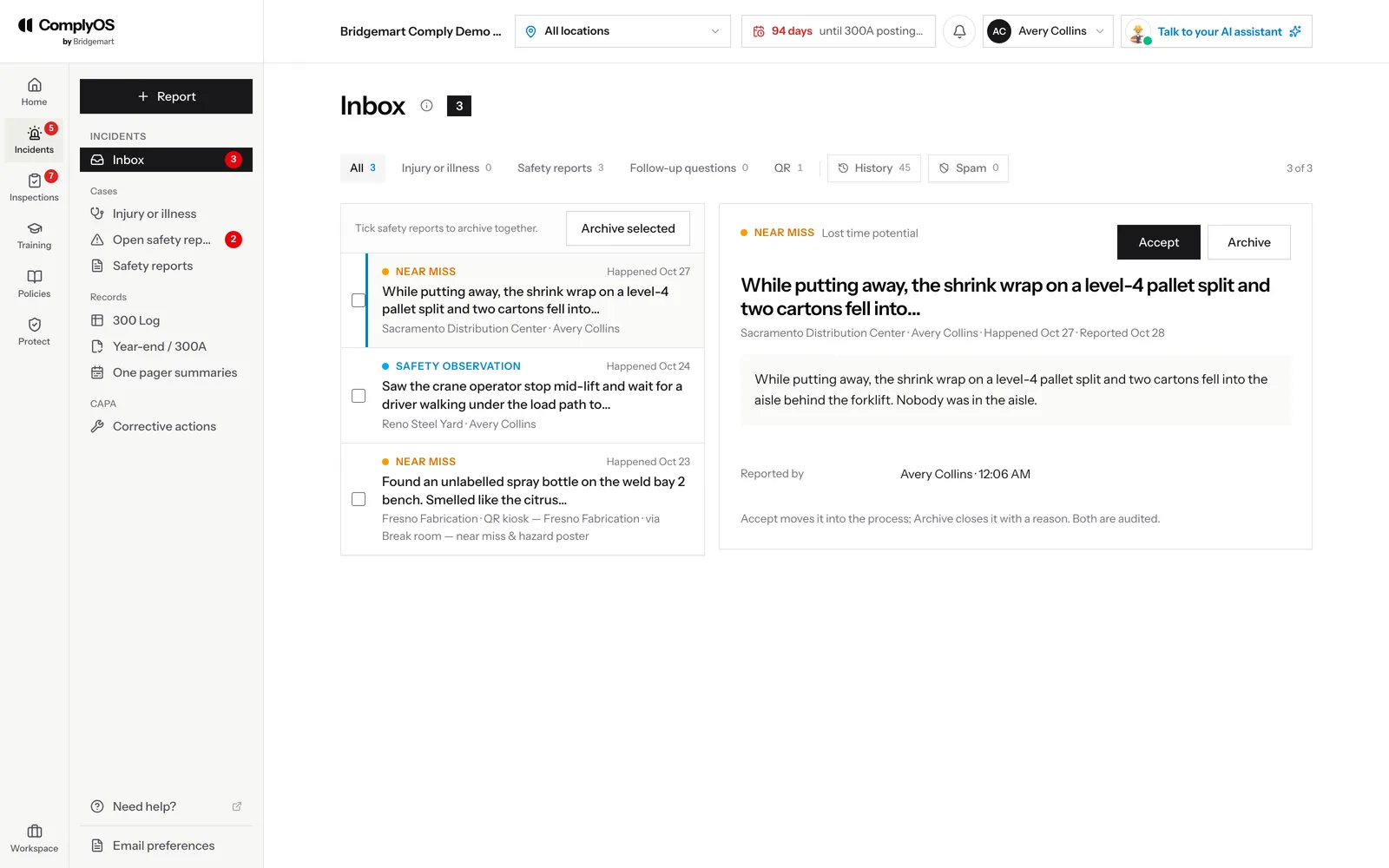
16Triage the Inbox

Everything reported lands in the Inbox, under Incidents. Accept a report to move it into an investigation, ask the reporter a follow-up question, or archive it with a reason. A severe injury starts OSHA’s reporting clock the moment it comes in, and the clock is shown until it is reported.

The Inbox: incoming reports with their type and site, and the selected report alongside with Accept and Archive

17Decide recordability

Each injury or illness report waits under Incidents → Injury or illness for a recordability decision: is it an OSHA recordable case, and how is it classified. A recordable case goes onto its site’s 300 Log; one that is not stays on file with the reason. Recorded and archived reports are a click away, and a reminder goes out when a report has waited more than three days.

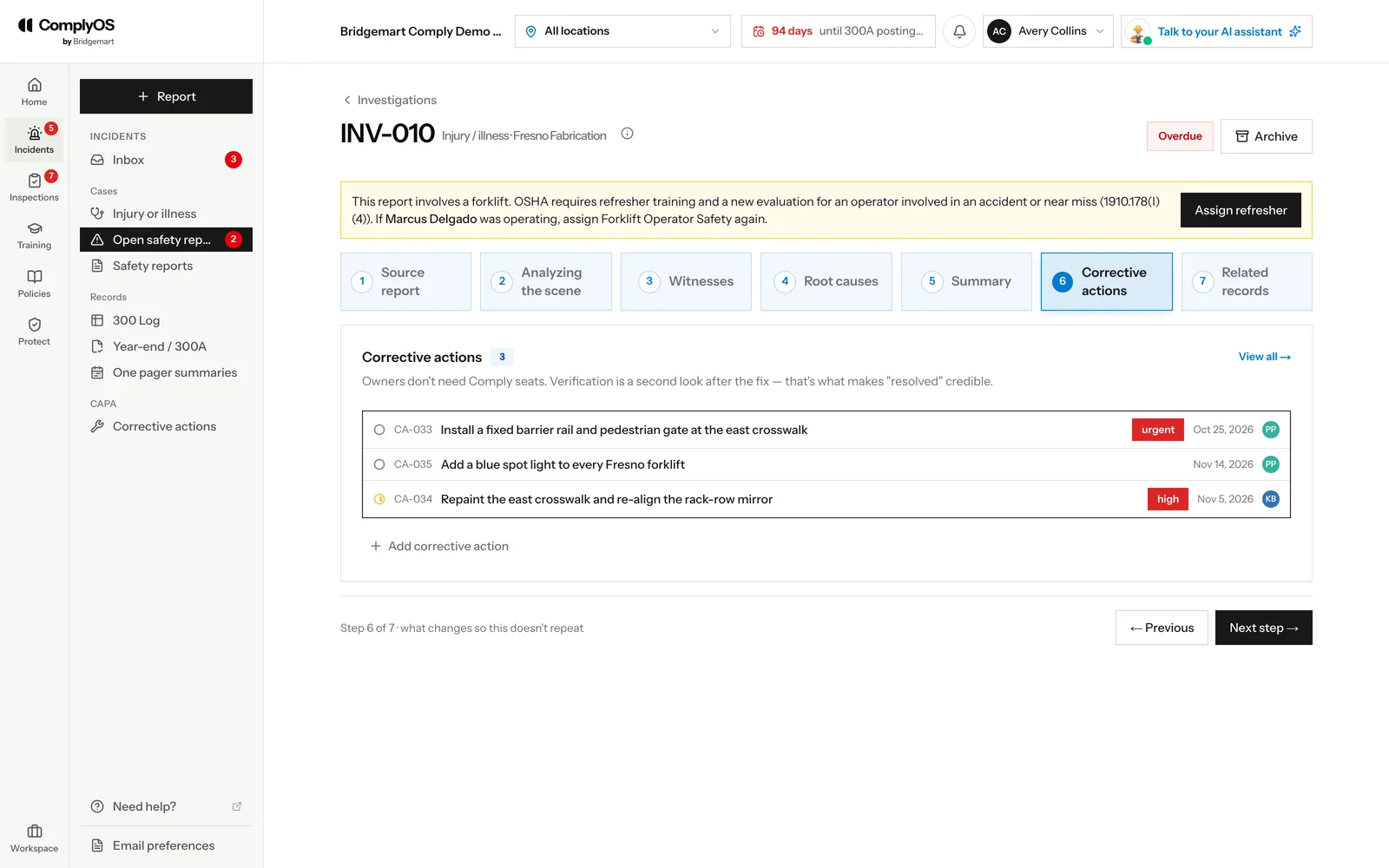
18Investigate

An investigation walks you through the same steps every time: the source report, the scene, witnesses, root causes, a summary, corrective actions and related records. The AI drafts what it can from what has been gathered, and flags OSHA requirements as they apply — like a forklift operator’s refresher after an incident.

An investigation in ComplyOS at the corrective-actions step, with a forklift refresher flagged above

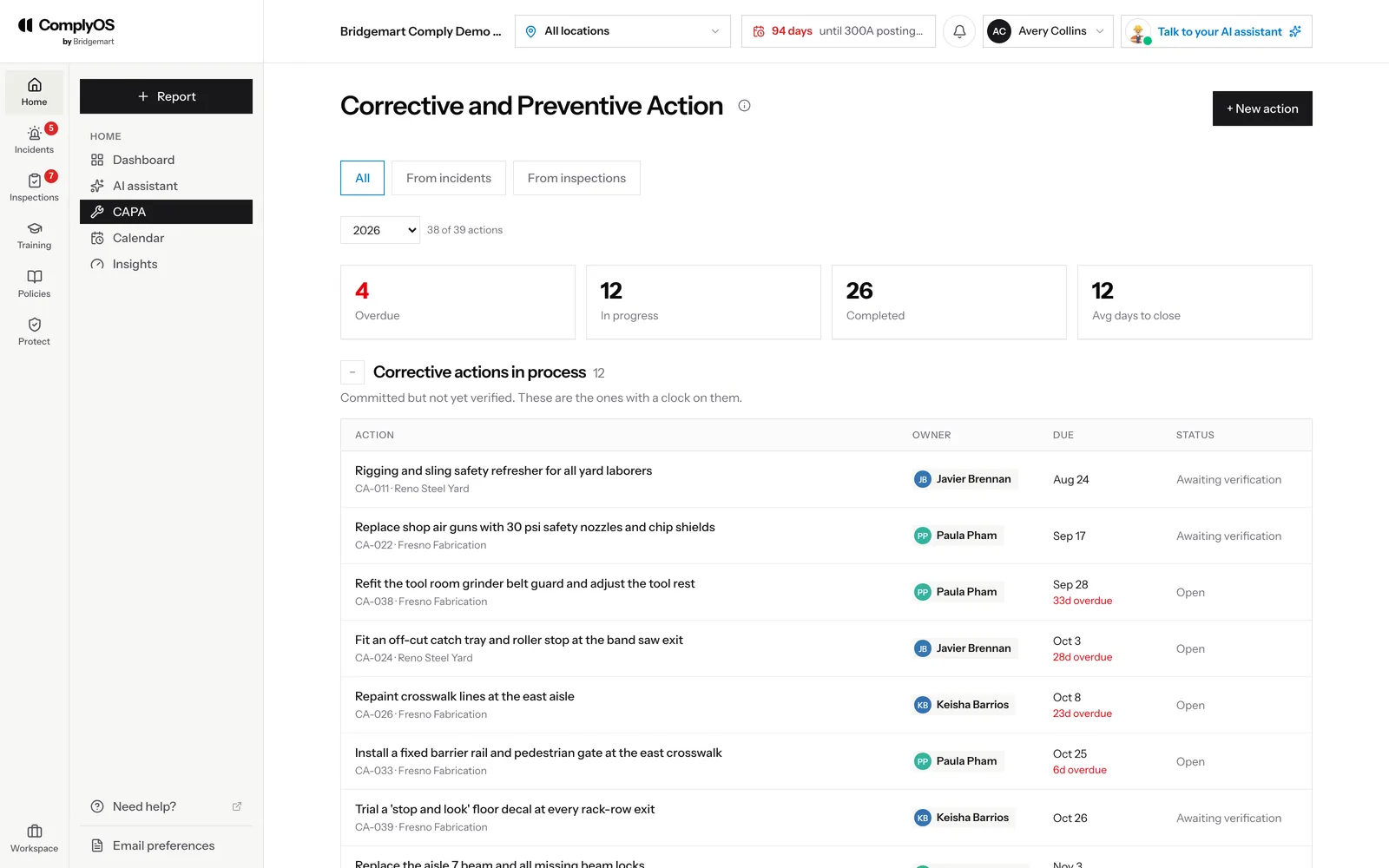
19Fix it with CAPA

Corrective actions live under Home → CAPA. Each has an owner, a due date and a verification step, so “done” means checked. Each finding’s CAPA also recommends what else should change — a training, a JHA or SWP revision, a new inspection. For each recommendation choose Accept and the AI does the work, choose I’ll do it myself, or Decline with a reason. Anything the AI writes waits for a person to publish it.

Corrective and Preventive Action: overdue, in-progress and completed counts, then each action with its owner, due date and status

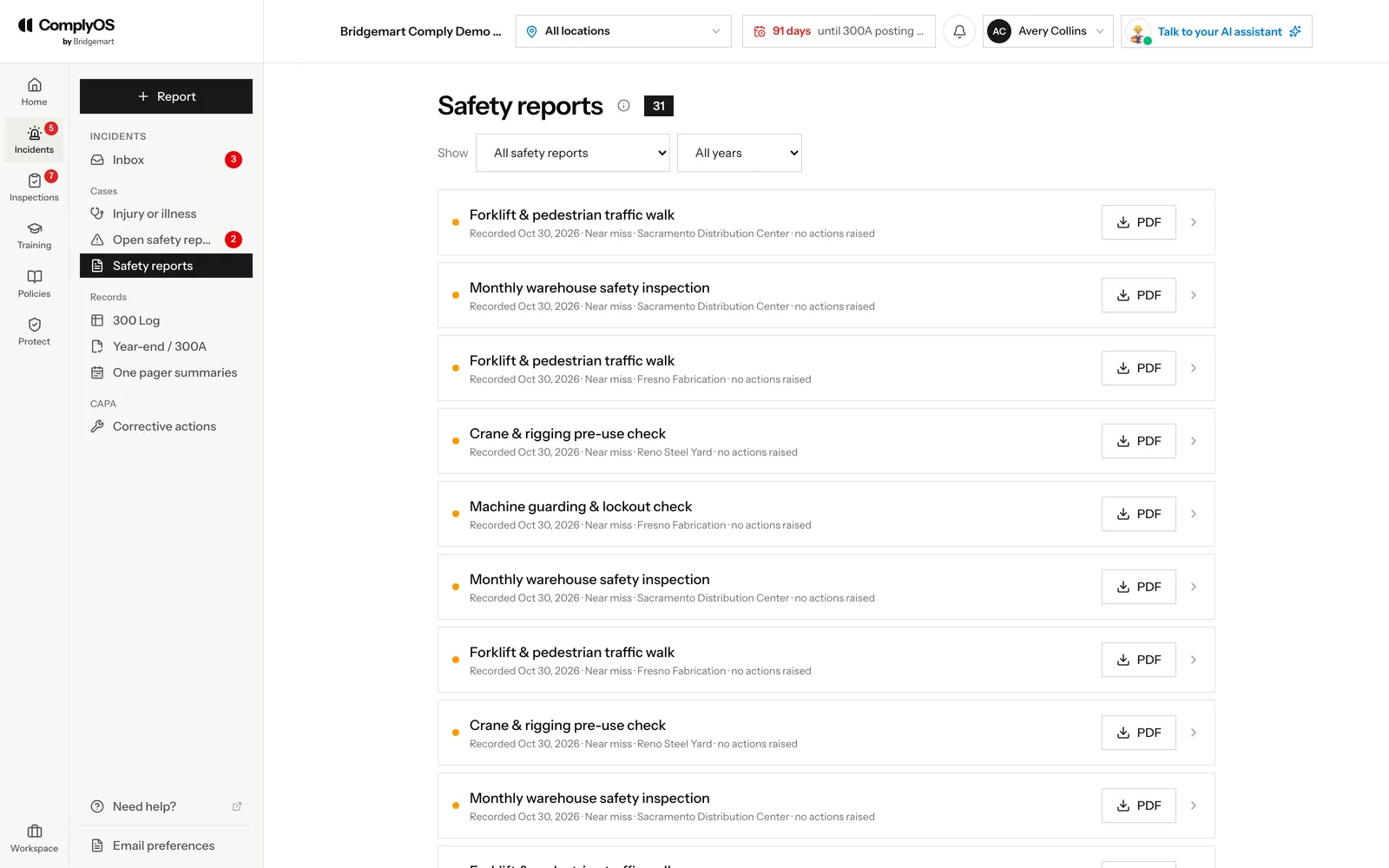
20Keep safety reports and one-pagers

Incidents → Safety reports is the record of every near miss, hazard, observation and property damage report, filtered by type and year, each downloadable as a PDF. Open safety reports are the ones still being looked into.

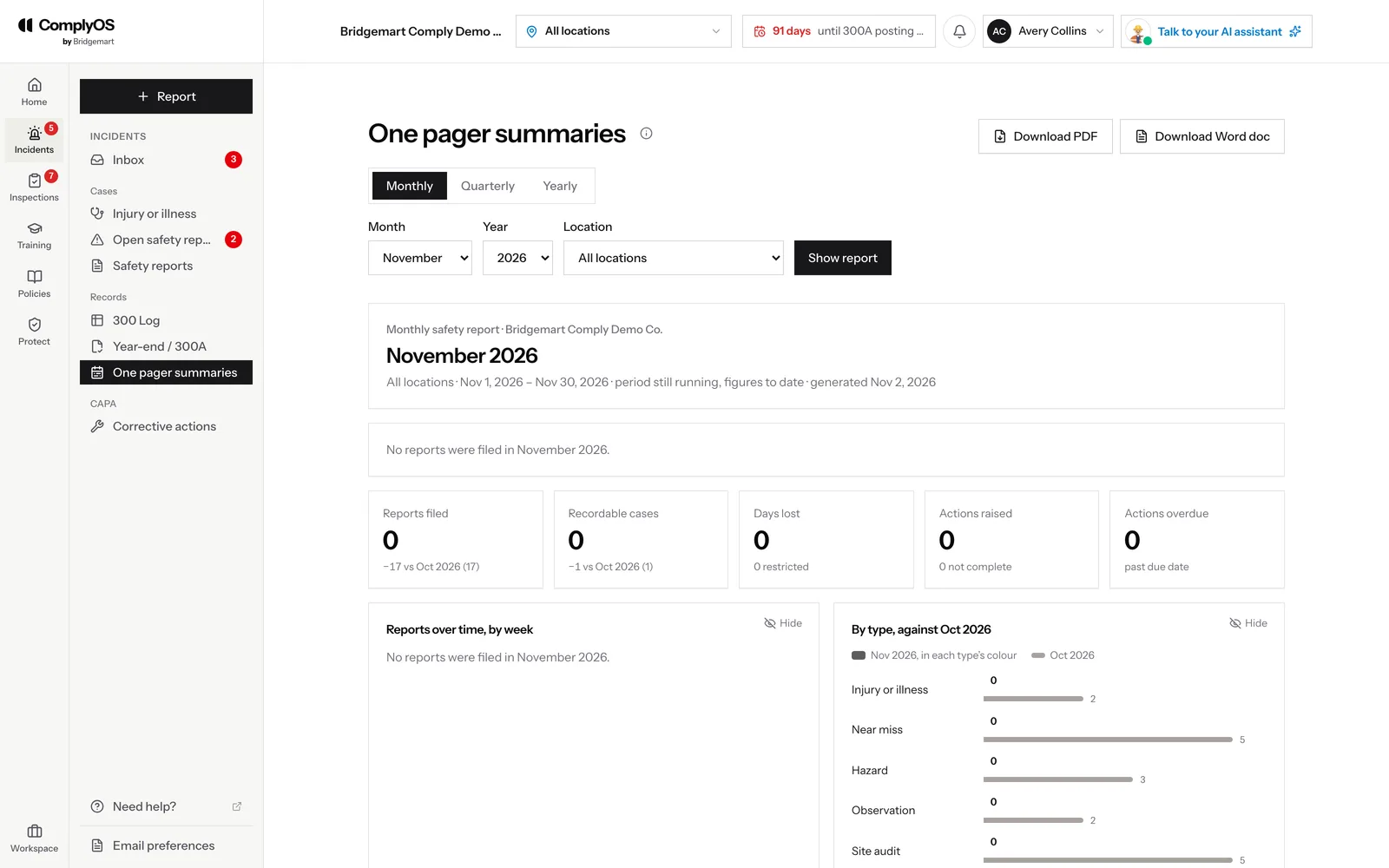
Incidents → One pager summaries builds a monthly, quarterly or yearly report for one site or all of them: reports filed, recordable cases, days lost, actions raised and overdue, each against the period before, with charts by week and by type. Download it as a PDF or a Word document for a safety committee or leadership meeting.

Safety reports: every report with its type, site and date, each with a PDF download
A monthly one pager summary: reports filed, recordable cases, days lost and actions, against the month before

21Employees: My work

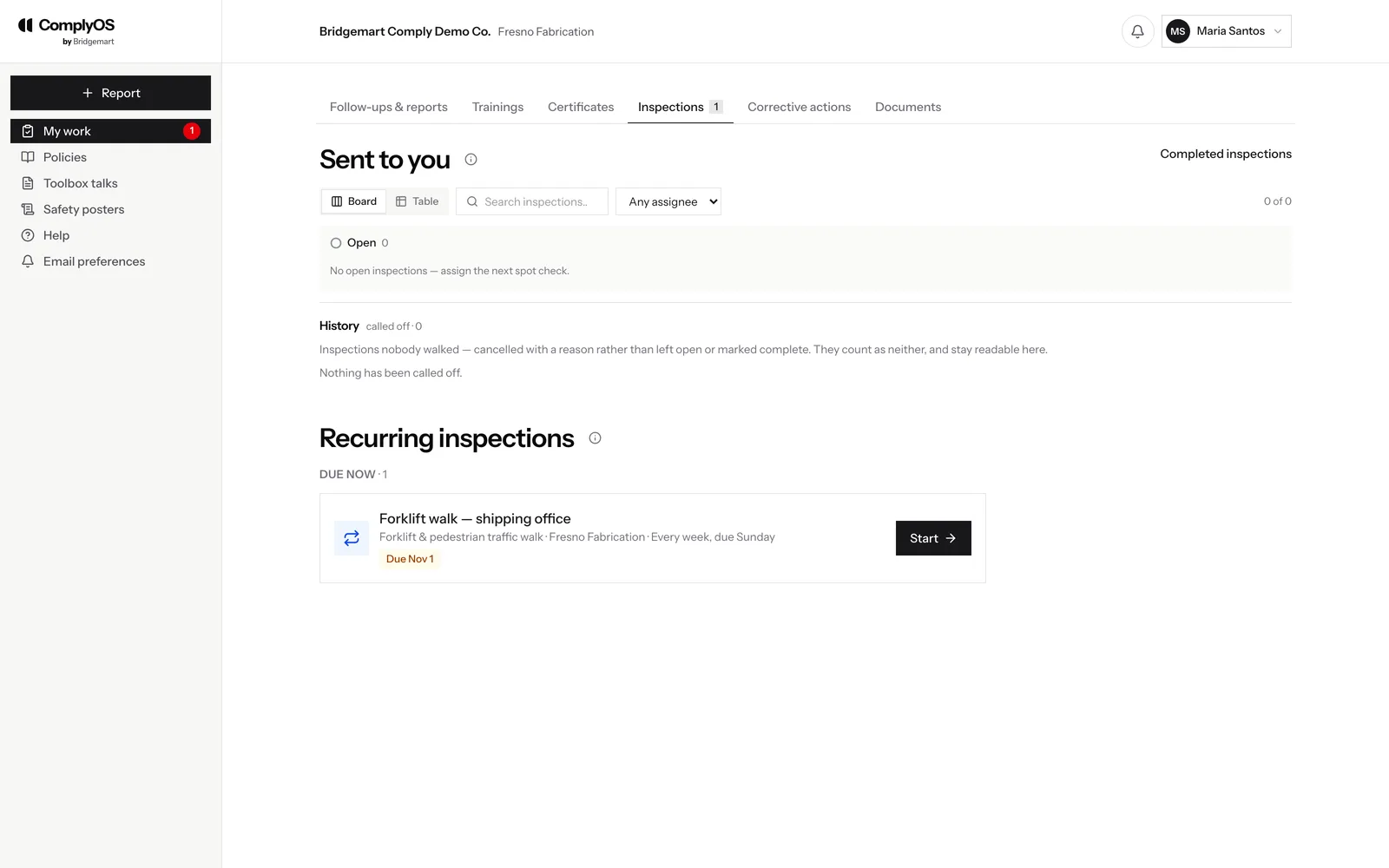
An employee’s home is My work: the follow-up questions on their reports, their trainings and certificates — certification tests and in-person sessions included — inspections sent to them or due at their site, the corrective actions they own, and revised documents to read and sign. Toolbox talks and safety posters are in their sidebar too.

My work for an employee: inspections sent to them and the recurring inspections due at their site

22Keep the OSHA records

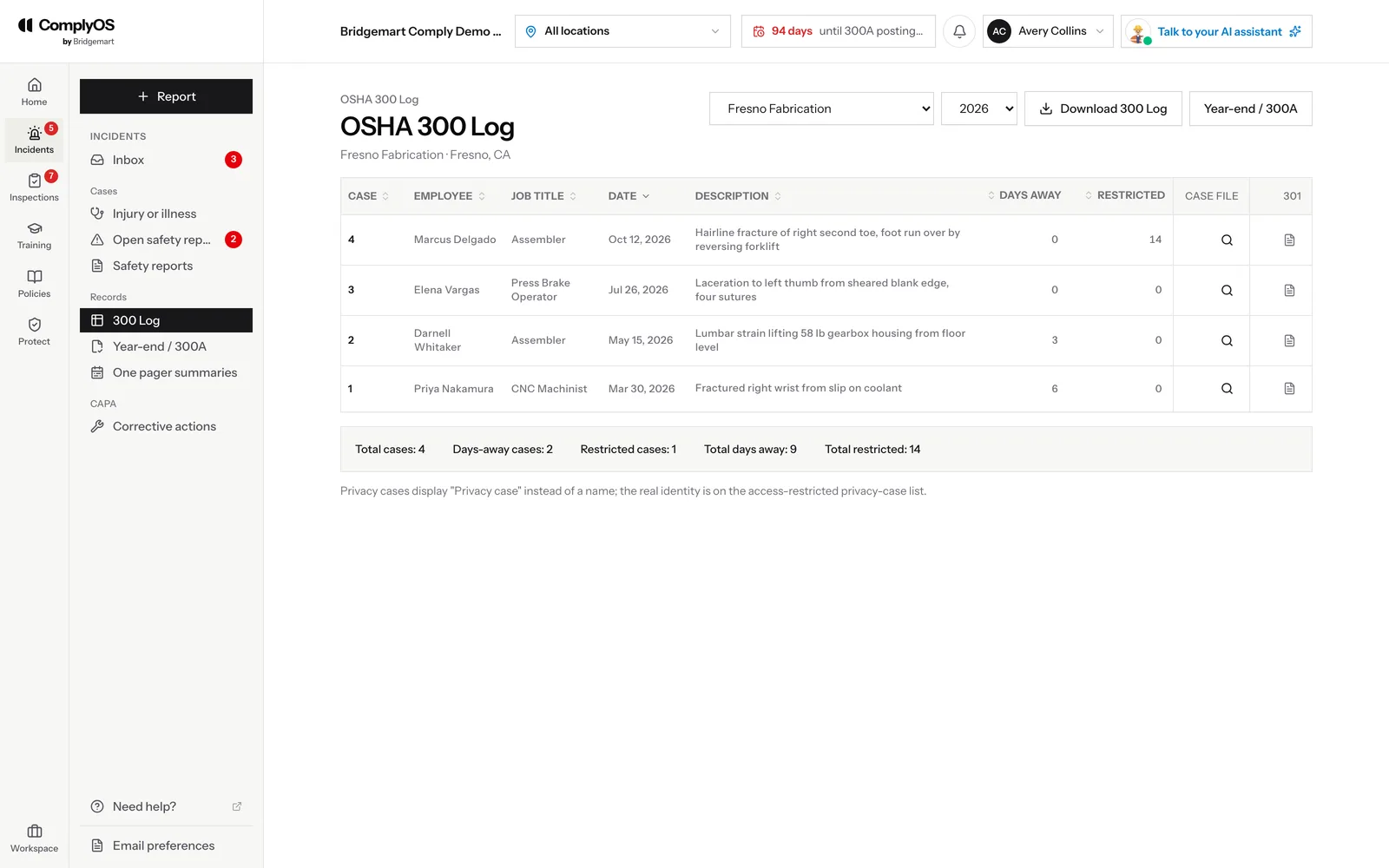
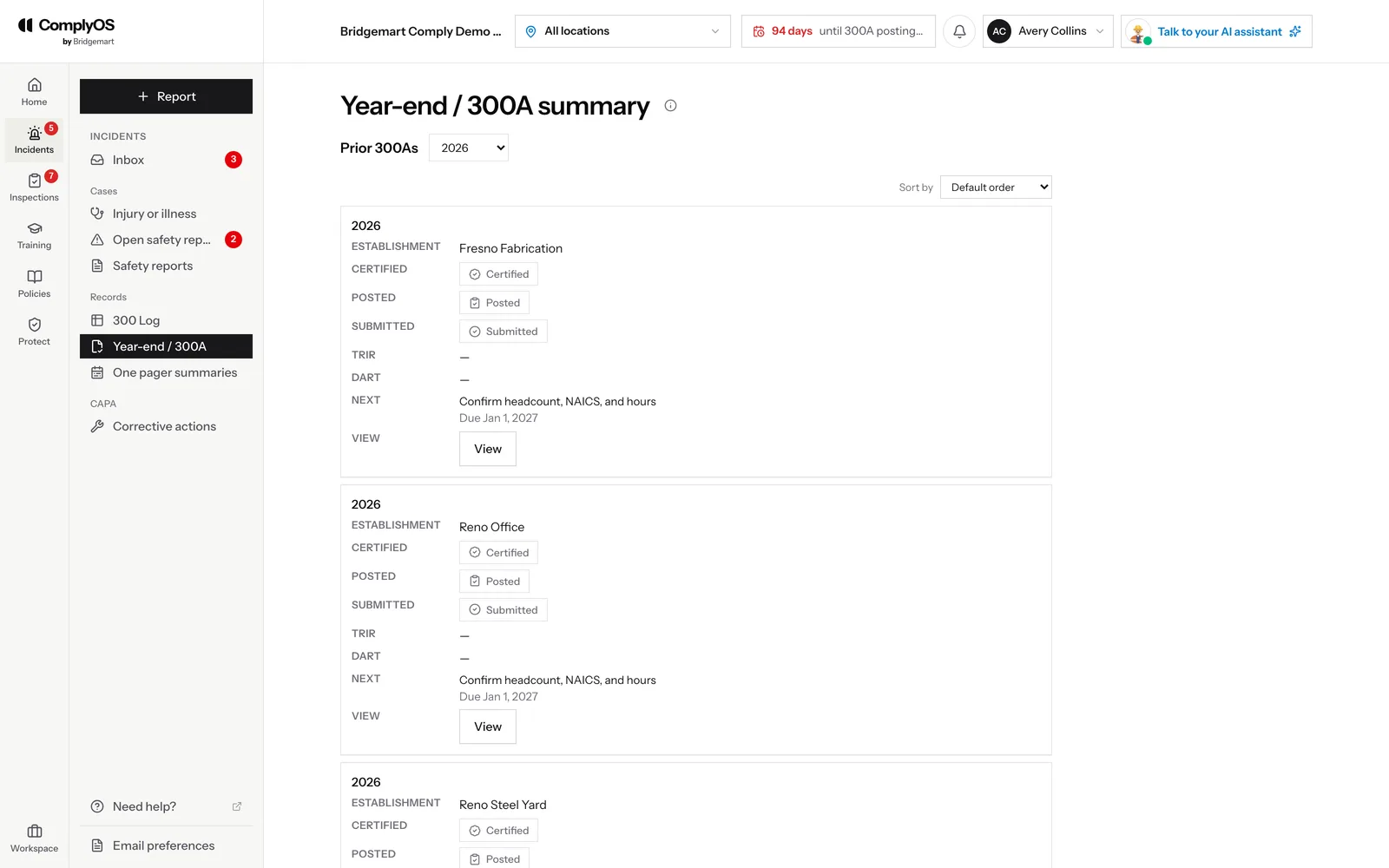
Recordable cases go onto each site’s 300 Log as they are decided, with privacy cases handled for you. At year end, each site has one page with a tab for every task: the 300A, certification by a company executive (signed from an emailed link), posting, the ITA submission and any severe-injury deadlines.

The OSHA 300 Log for one site: each case with employee, job title, date, description, days away and restrictions
Year-end 300A in ComplyOS: each site with its certify, post and submit status and the next step due

23Watch rates and deadlines in Insights

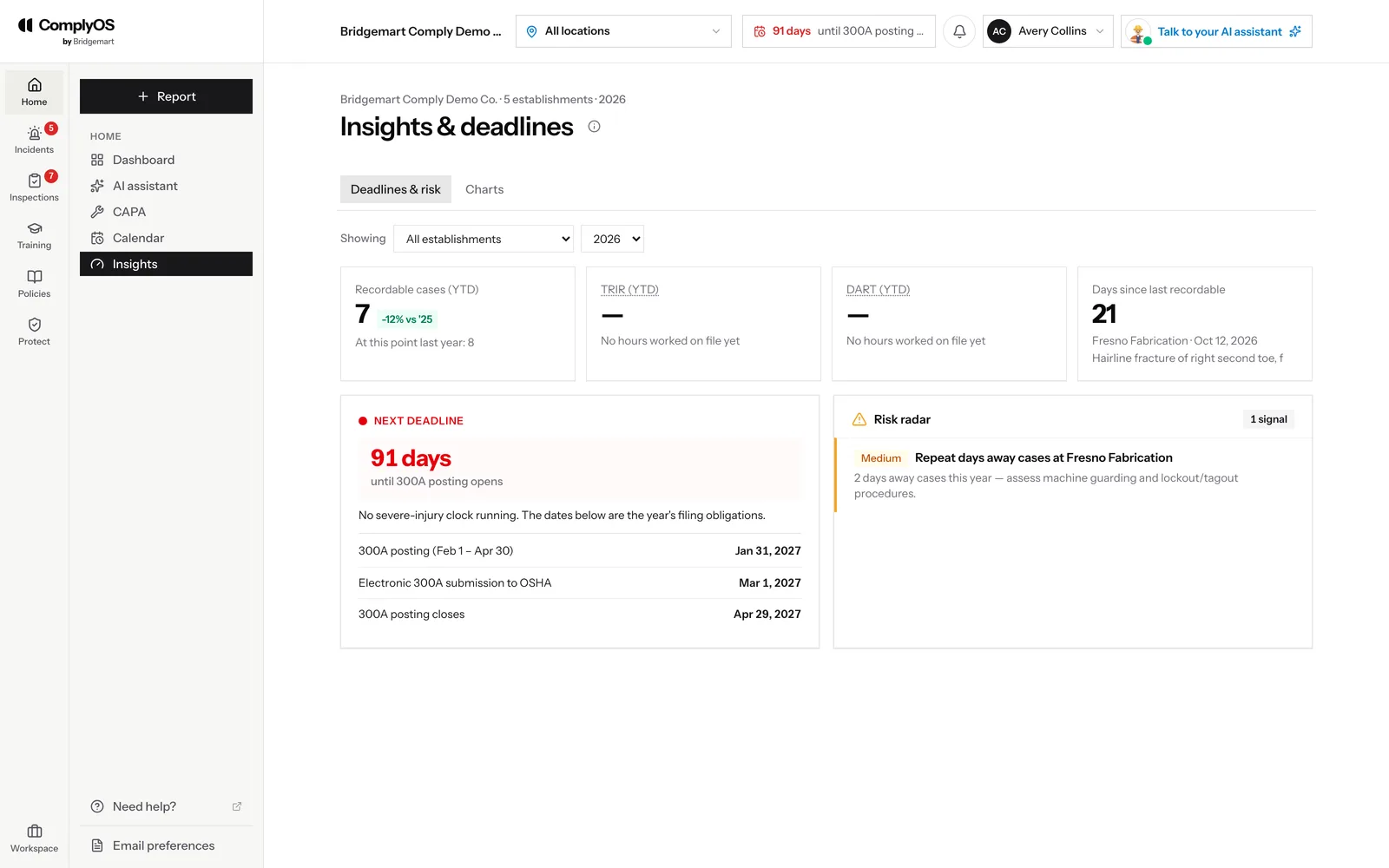
Home → Insights shows where the program stands for any site and year: recordable cases so far against the same point last year, TRIR and DART once hours worked are on file, and days since the last recordable. The next OSHA deadline counts down beside the year’s filing dates, and the risk radar points out patterns worth acting on, like repeat days-away cases at one site. The Charts tab shows the same over time.

Insights and deadlines: recordables, TRIR, DART, days since the last recordable, the next deadline and the risk radar

24Plan with the calendar

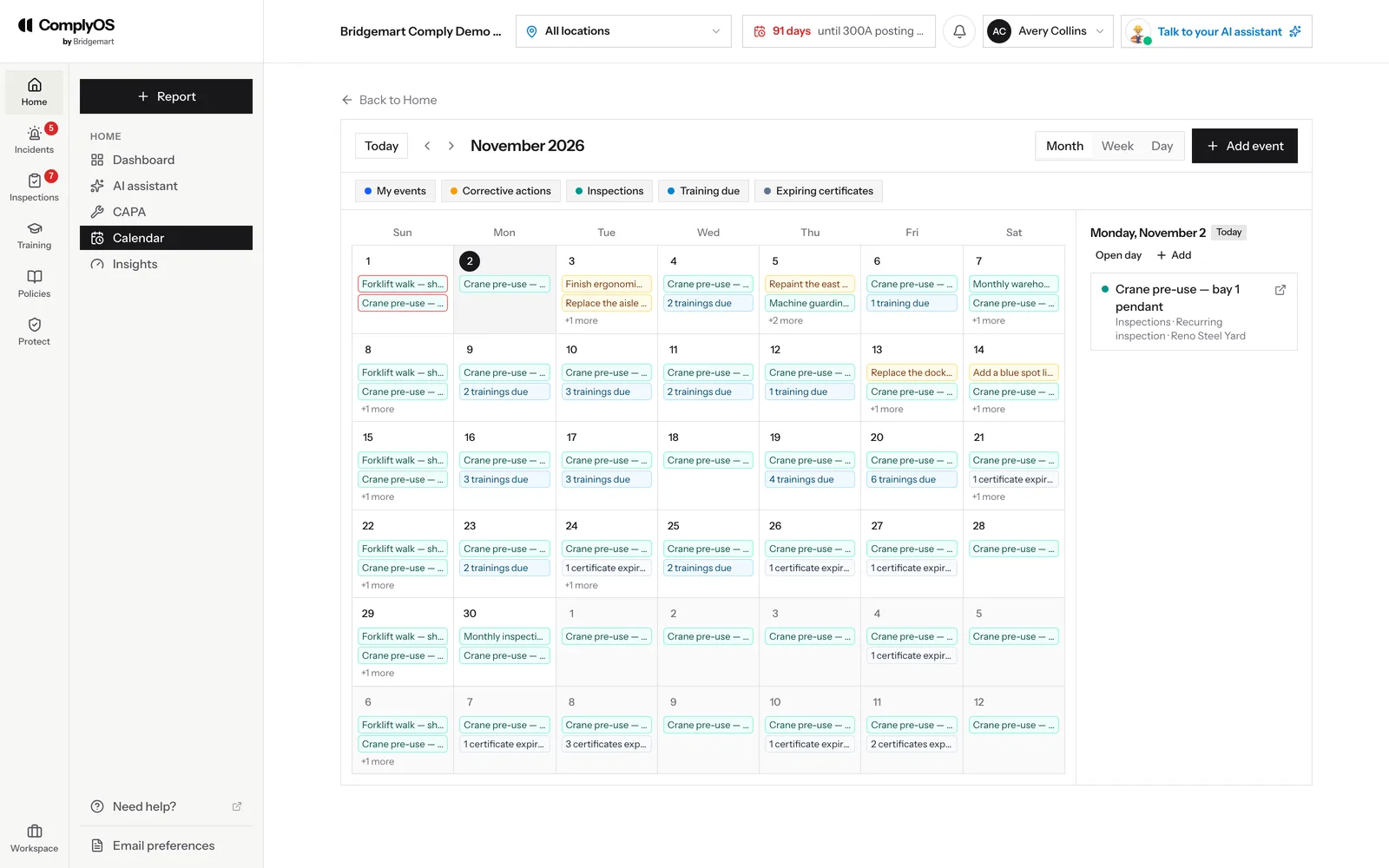
Home → Calendar puts everything with a date in one place: corrective actions coming due, inspections, trainings due and certificates about to expire, plus events you add yourself. View it by month, week or day, and turn each kind on or off.

The ComplyOS calendar: a month of corrective actions, inspections, trainings due and expiring certificates

25Record daily meetings

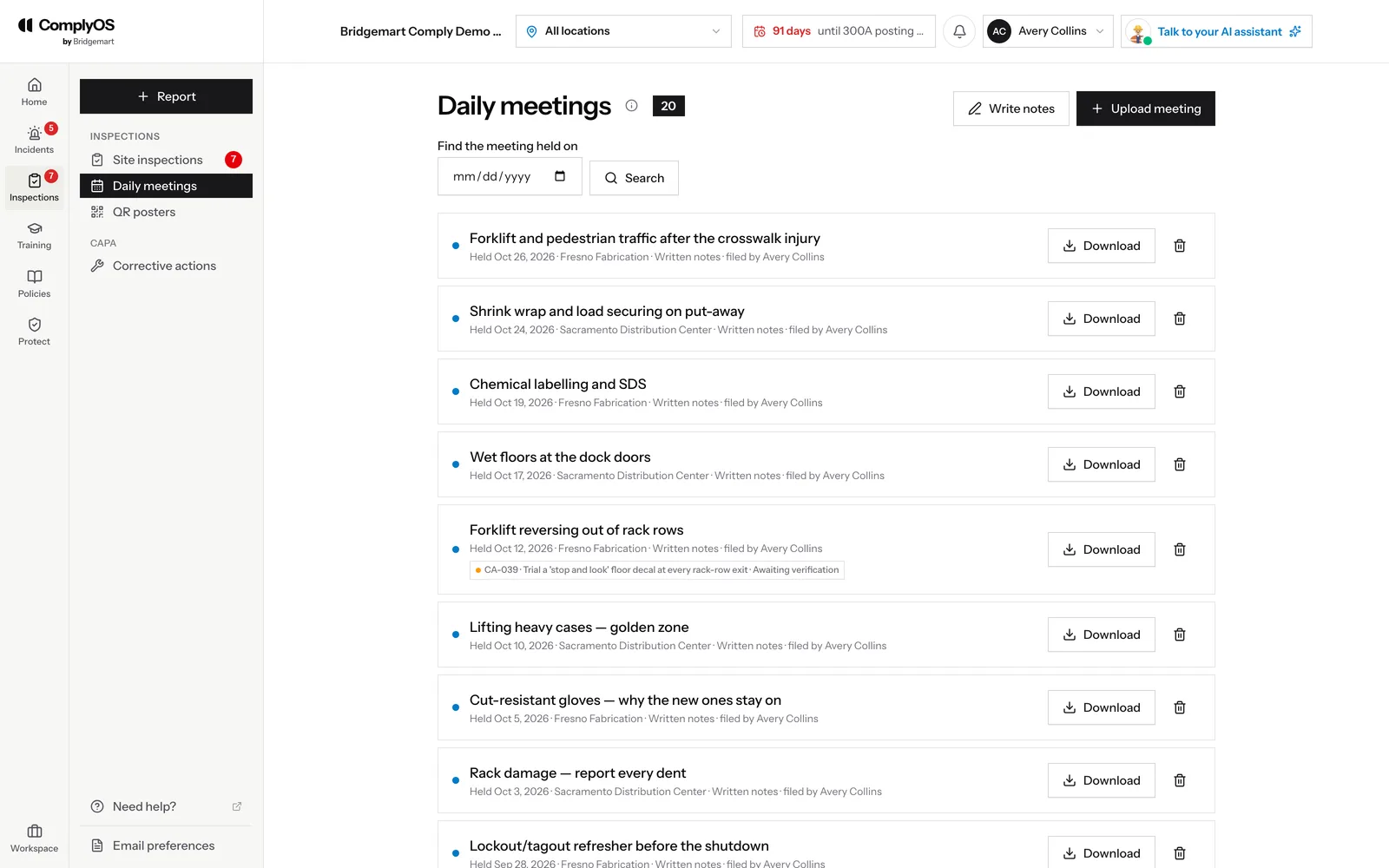
Under Inspections → Daily meetings, keep a record of every toolbox talk, shift huddle and tailgate. Type the notes while they are fresh, or upload what came out of it — the handout, your notes or a photo of the sign-in sheet — with the site and date. A meeting can be tied to the corrective action it was about, and any meeting can be found by the day it was held and downloaded as a PDF.

Daily meetings: each meeting with its date, site and who filed it, linked corrective actions, and a download

26Ask your AI assistant

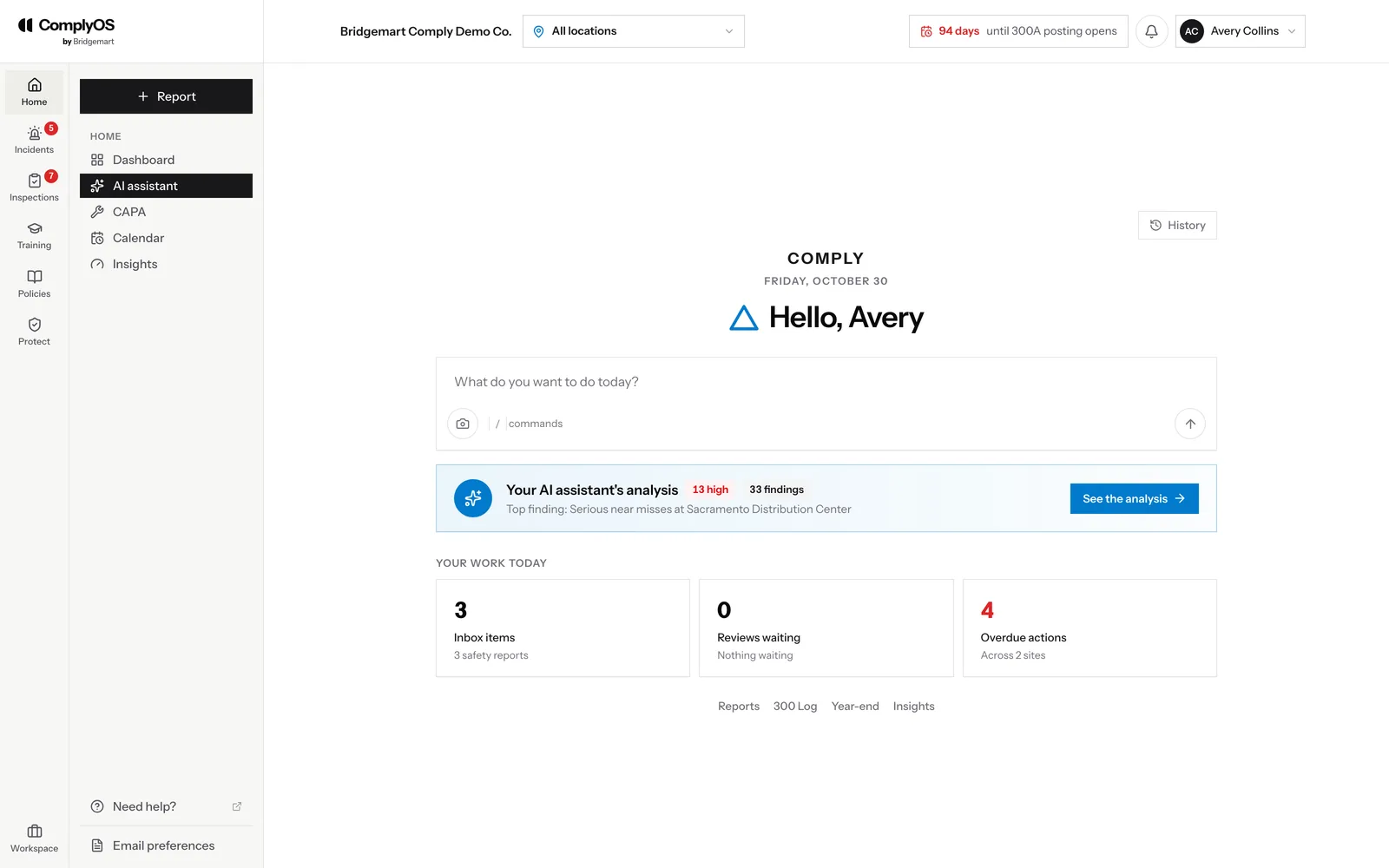
Open the AI assistant from the dashboard or from Home. Ask it anything about your safety program — what is overdue, which site is behind, what a rule means — and it will answer from your records or take you to the right screen. Its analysis reads across reports, inspections, training and fixes, and tells you what to do in the next two weeks.

The ComplyOS AI assistant: the ask bar, its analysis findings and today’s work

27Train your people

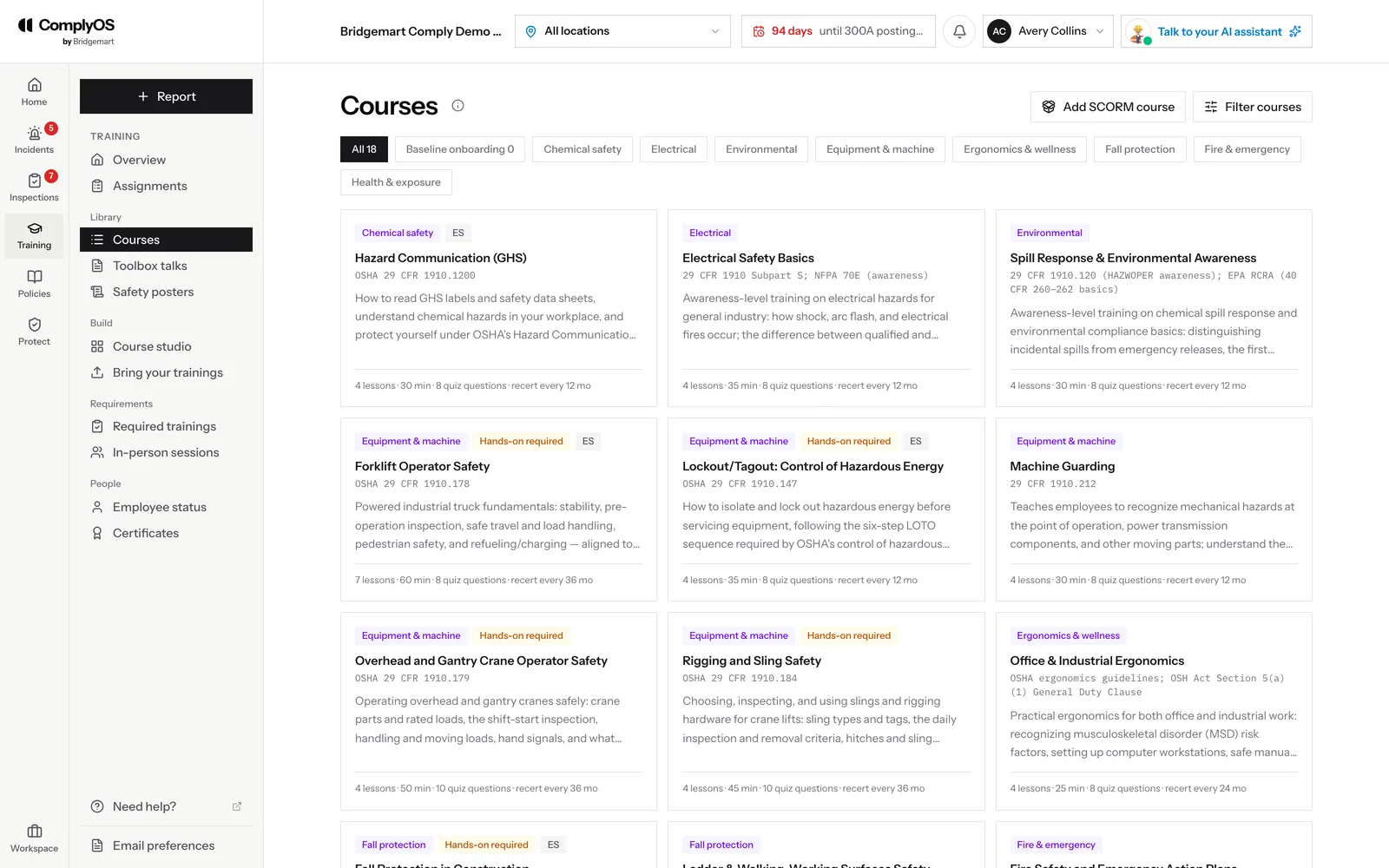
Training holds a library of safety courses, each mapped to the OSHA standard behind it, alongside the courses you build in Course studio — from a document, or from a training video, transcribed into lessons that each play their own part of it — or bring in. Assign training by hand, by rule or from a CAPA, run in-person sessions with attendance, and see where every employee stands across sites and job titles. A course the AI drafts can be sent to a named manager to review before it is published.

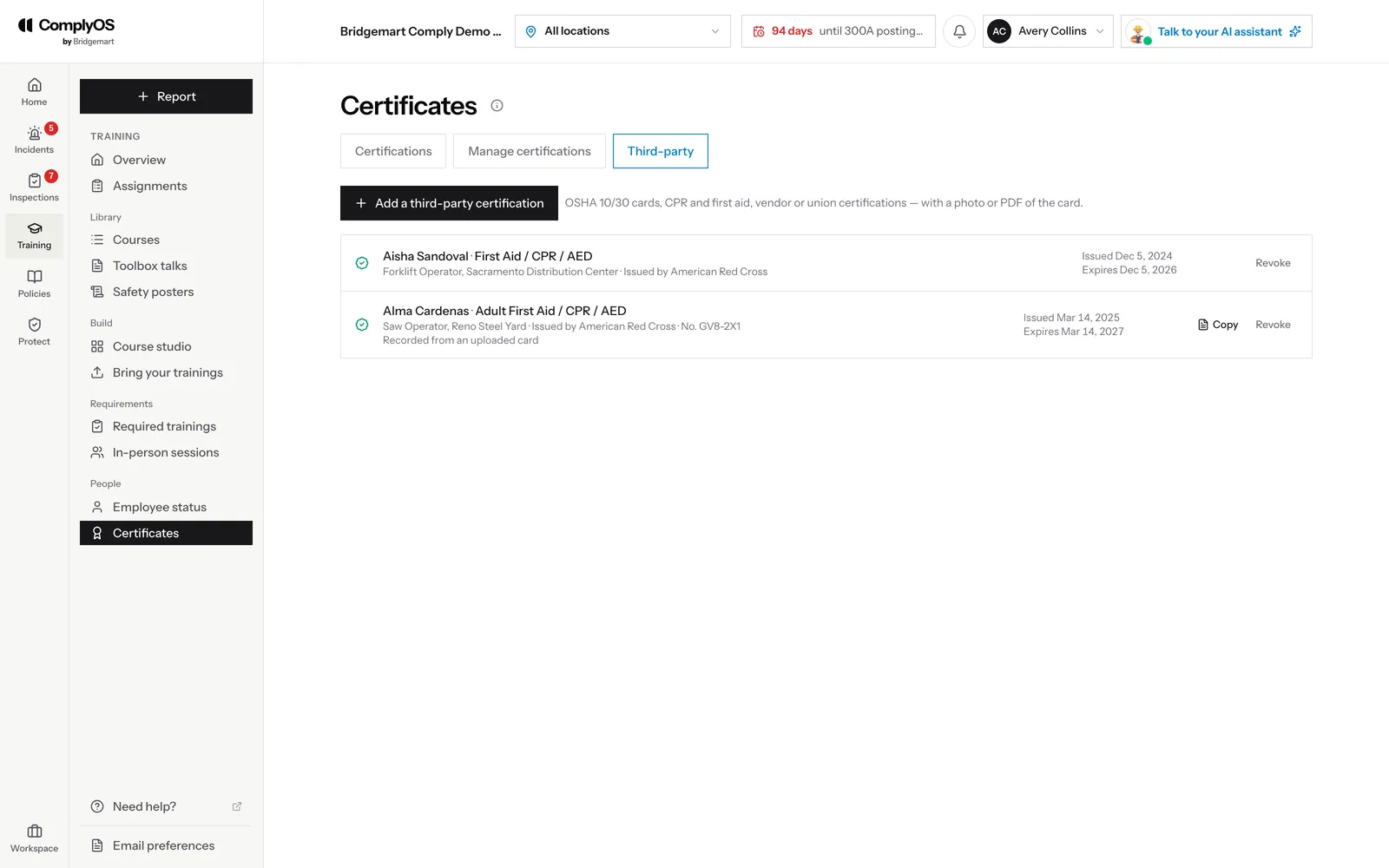
Certificates keeps every certification your people hold: your own, earned by passing what it takes or by an observed test, and outside cards like OSHA 10/30, CPR or forklift, with a copy of the card. Each one is reminded about 60, 30 and 7 days before it expires, and one of your own that lapses puts the person back on the way to it.

The Training course library, grouped by category with each course’s OSHA citation
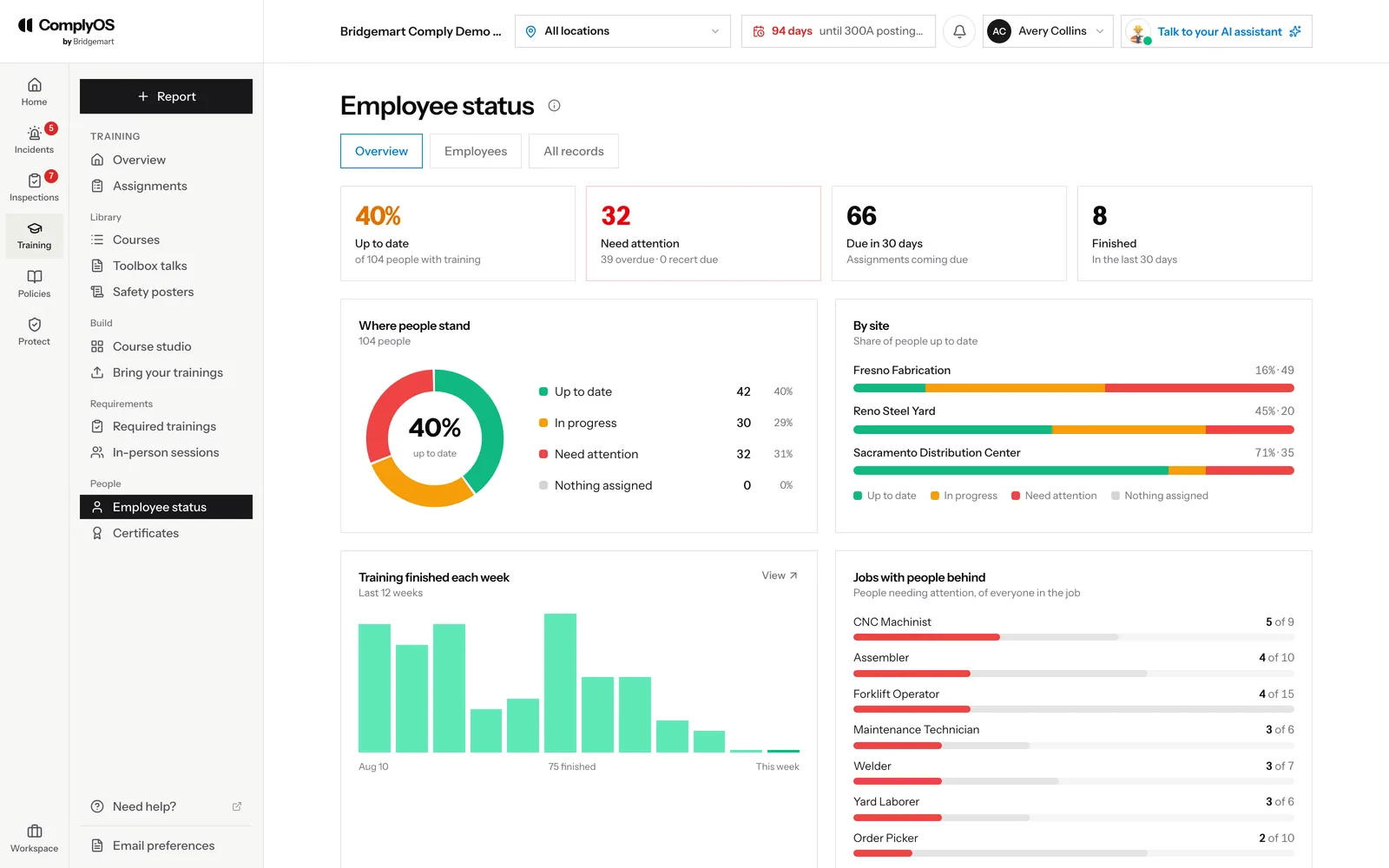
Employee training status: up to date, needs attention, due soon, by site and by job title
Certificates: outside certification cards with their issuer, number, expiry and a copy of the card

28Assign and follow up on training

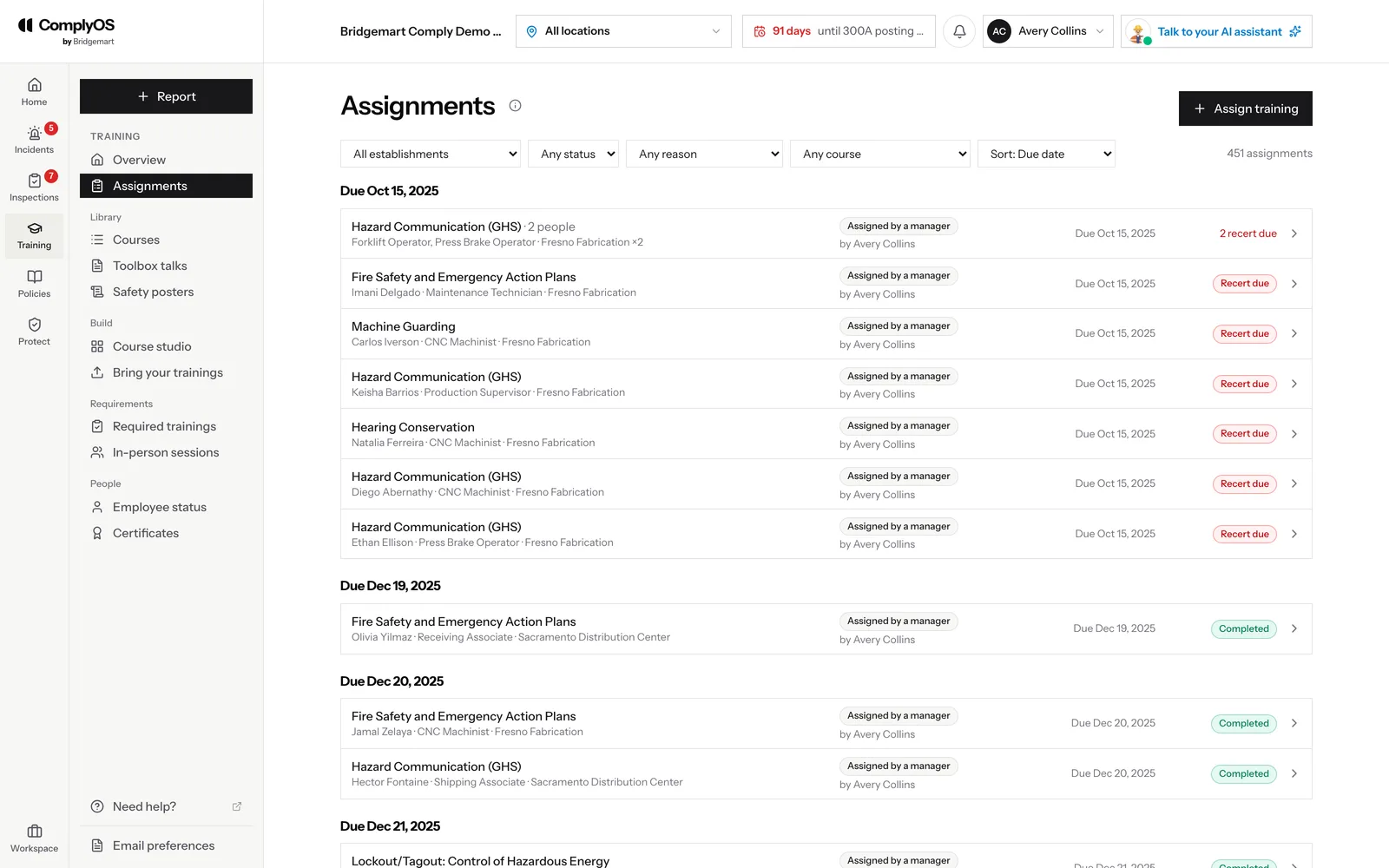
Training → Assignments lists every assignment, grouped by due date, with why it was given — by a manager, by a required training, as a recertification or after a report — and where it stands. Filter by site, status, reason or course, and use Assign training to give one or more courses to the people you pick.

Training assignments grouped by due date, each with the course, the person, why it was assigned and its status

29Run in-person sessions

Some training has to happen face to face: classes, toolbox talks and hands-on sessions. Under Training → In-person sessions, the Directory holds the in-person trainings you run, and By job title sets which jobs need each one and shows who is not current. Create a session and everyone invited sees it as scheduled; afterwards, record attendance and completion, and it goes onto each attendee’s training record.

In-person sessions: pick a job title to see who needs training, browse the directory or create a session

30Add courses from other vendors

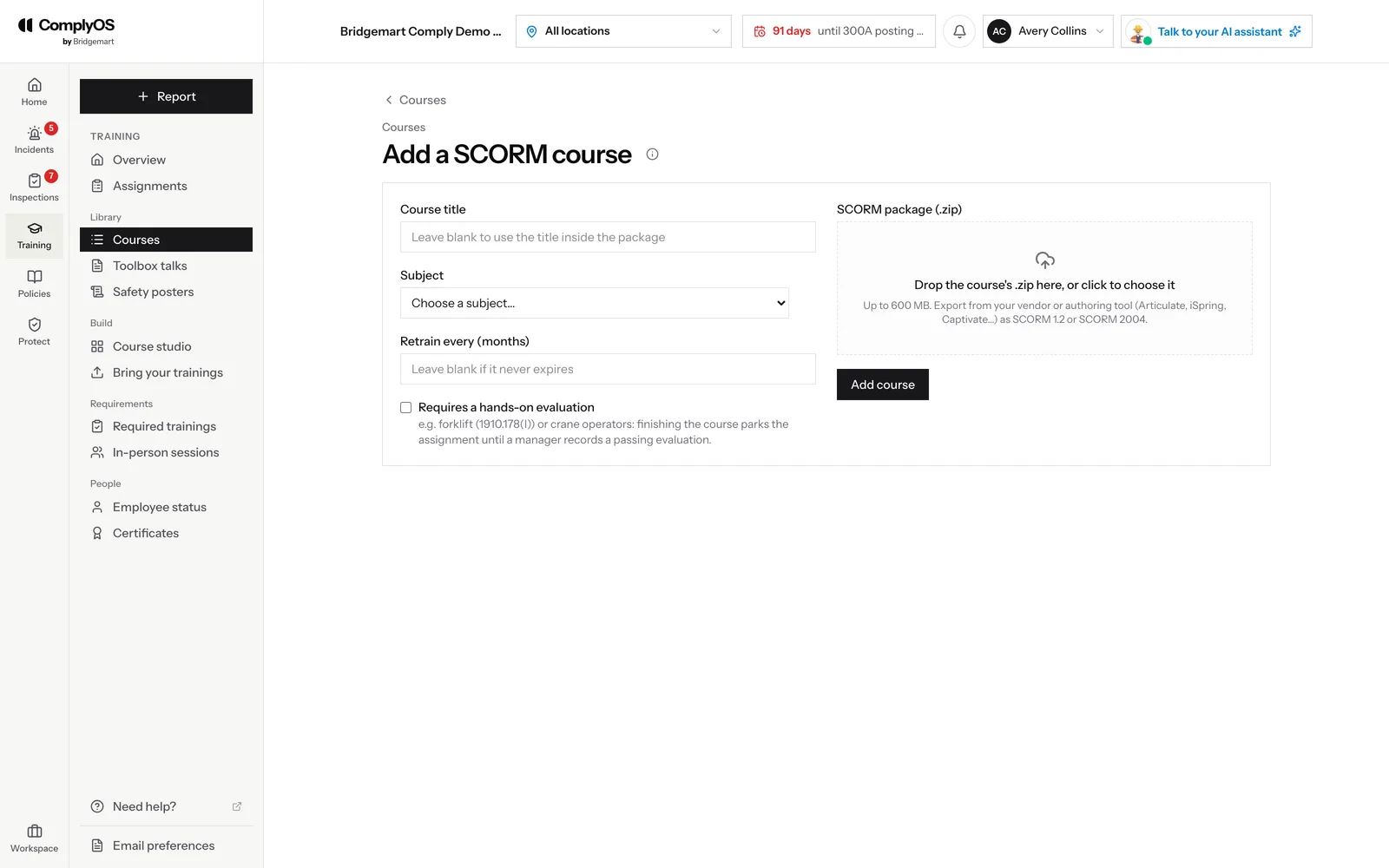
Already paying for courses from another provider, or building your own in Articulate, iSpring or Captivate? Under Training → Courses, choose Add a SCORM course and upload the package — SCORM 1.2 or SCORM 2004, up to 600 MB. It is assigned and tracked like any other course: completions, scores and certificates land in each employee’s training record.

Adding a SCORM course: upload a SCORM 1.2 or 2004 package exported from your vendor or authoring tool

31Share toolbox talks and safety posters

Training → Toolbox talks and Safety posters hold the short material you use every week. Upload a talk or a poster once and every employee can open it from their own sidebar.

32Use, share and export your policies

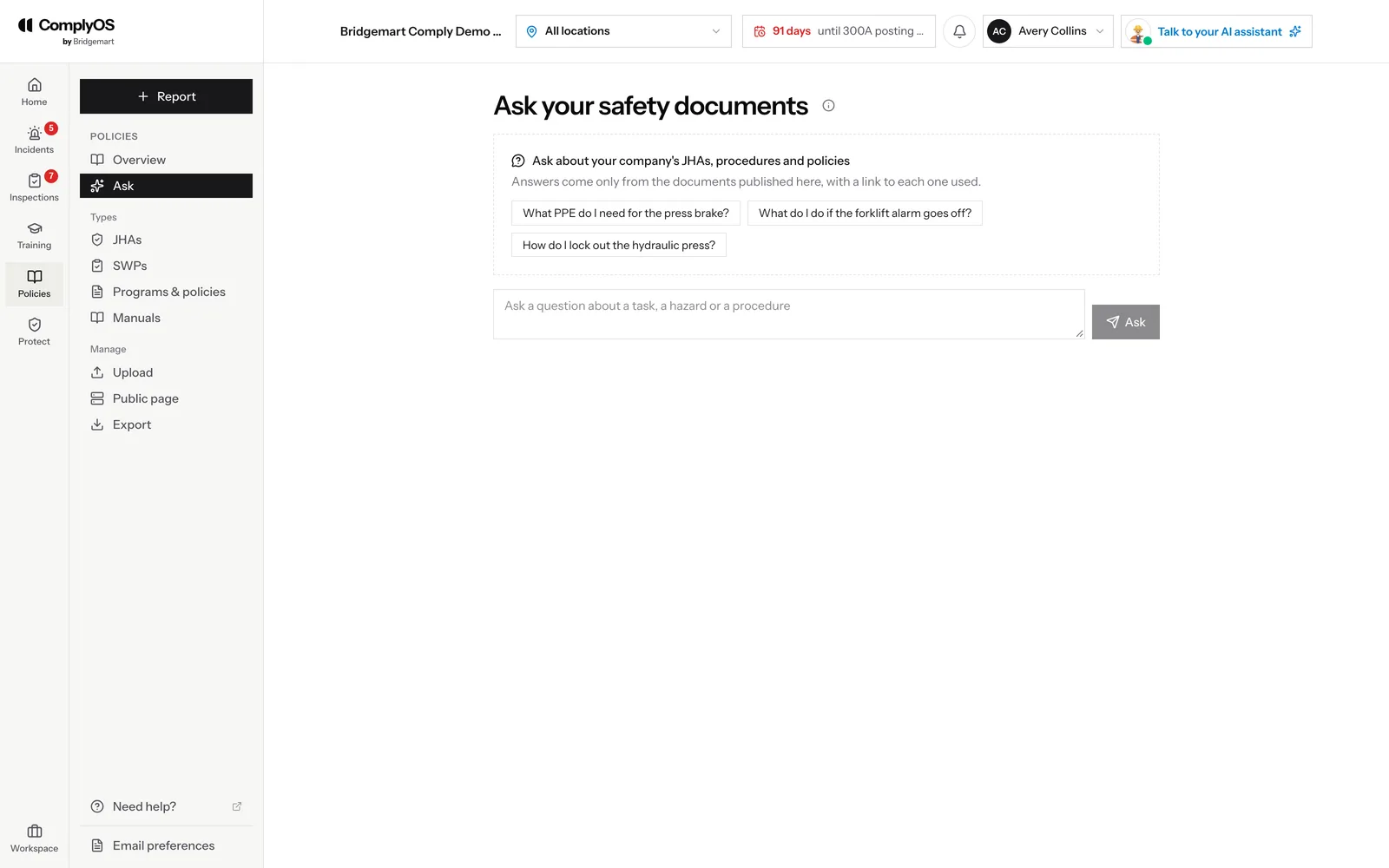
Policies → Ask lets anyone ask a question about a task, a hazard or a procedure. The answer comes only from your published documents, with a link to each one it used.

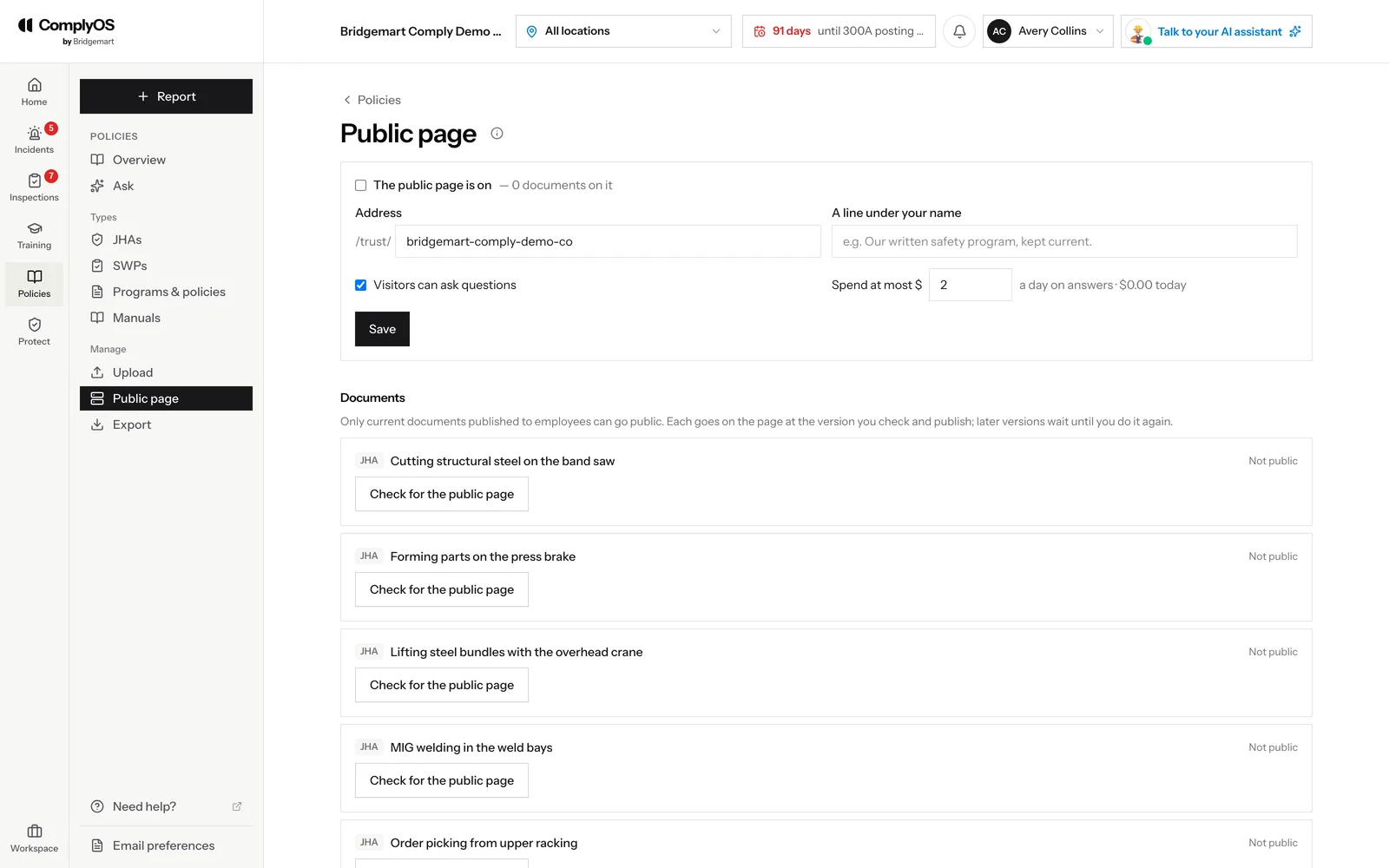
Policies → Public page publishes the documents you choose at your own address, like a trust center for customers, insurers and auditors. You check and publish each document onto the page, and later versions wait until you do it again. Visitors can ask questions too, answered only from what is on the page, with a daily spending limit you set.

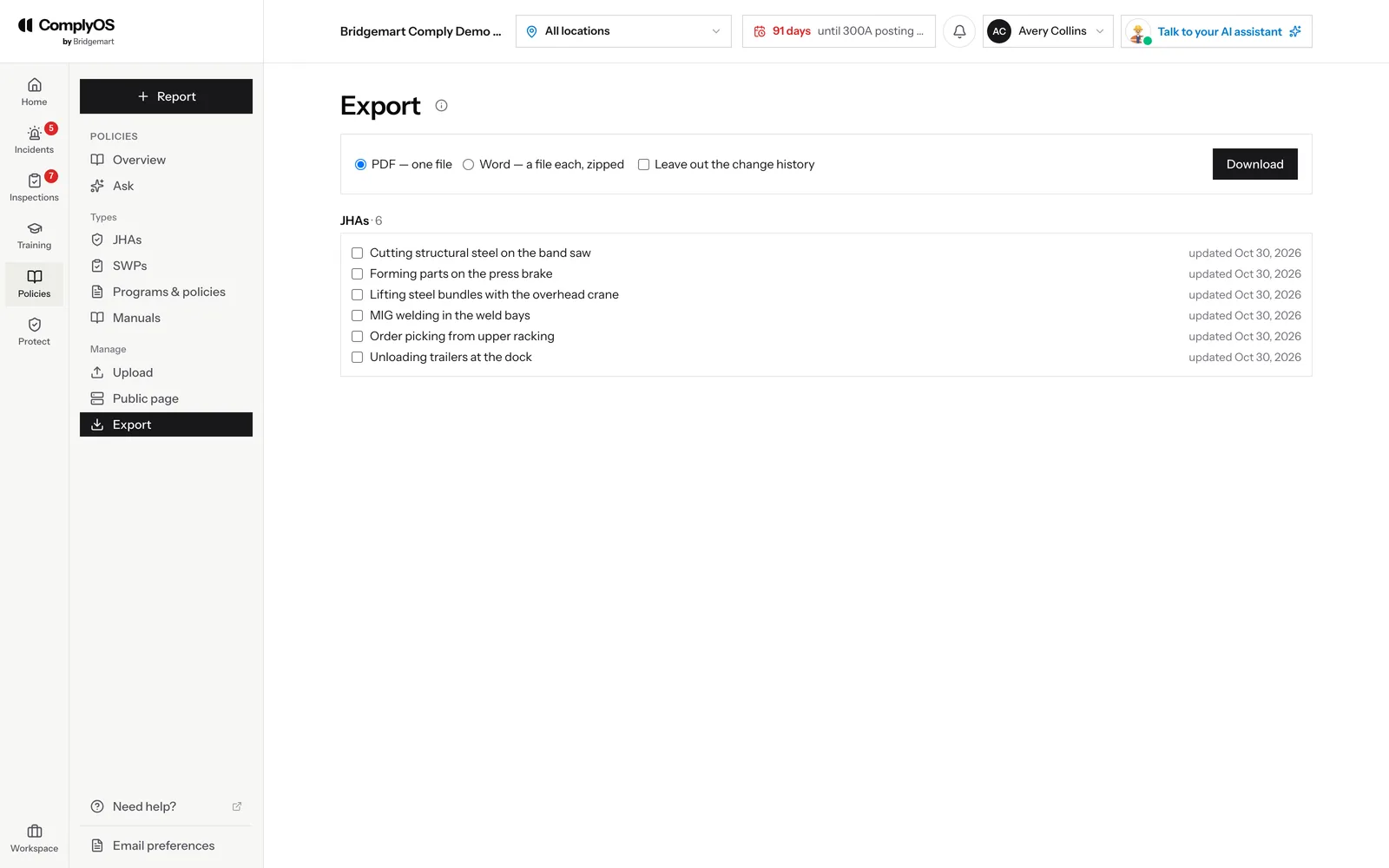
Policies → Export downloads any set of documents, as one PDF or as a Word file each in a zip, with or without their change history.

Ask your safety documents: questions answered only from the JHAs, procedures and policies you have published
The public page settings: its address, a line under your name, whether visitors can ask questions, and each document to check and publish
Exporting policies: choose PDF or Word, whether to leave out the change history, and which documents

33Track gear with Protect

Protect → Gear tracker shows who has which gear, when they got it, and how many days until they can get new. Add the gear you track, like glasses or boots, record each issue, and use Edit on a row to change it. People due for new gear show on your dashboard.

34Work with lists

Every list in ComplyOS works the same way. Filters and search sit above it on the left, and actions like importing or exporting sit on the right. Click a column heading to sort by it, and again to reverse it. Long lists show “Showing 1–50 of 104” beneath them, with Previous and Next. On a phone, each row becomes a card, so nothing is cut off.

35Choose your emails

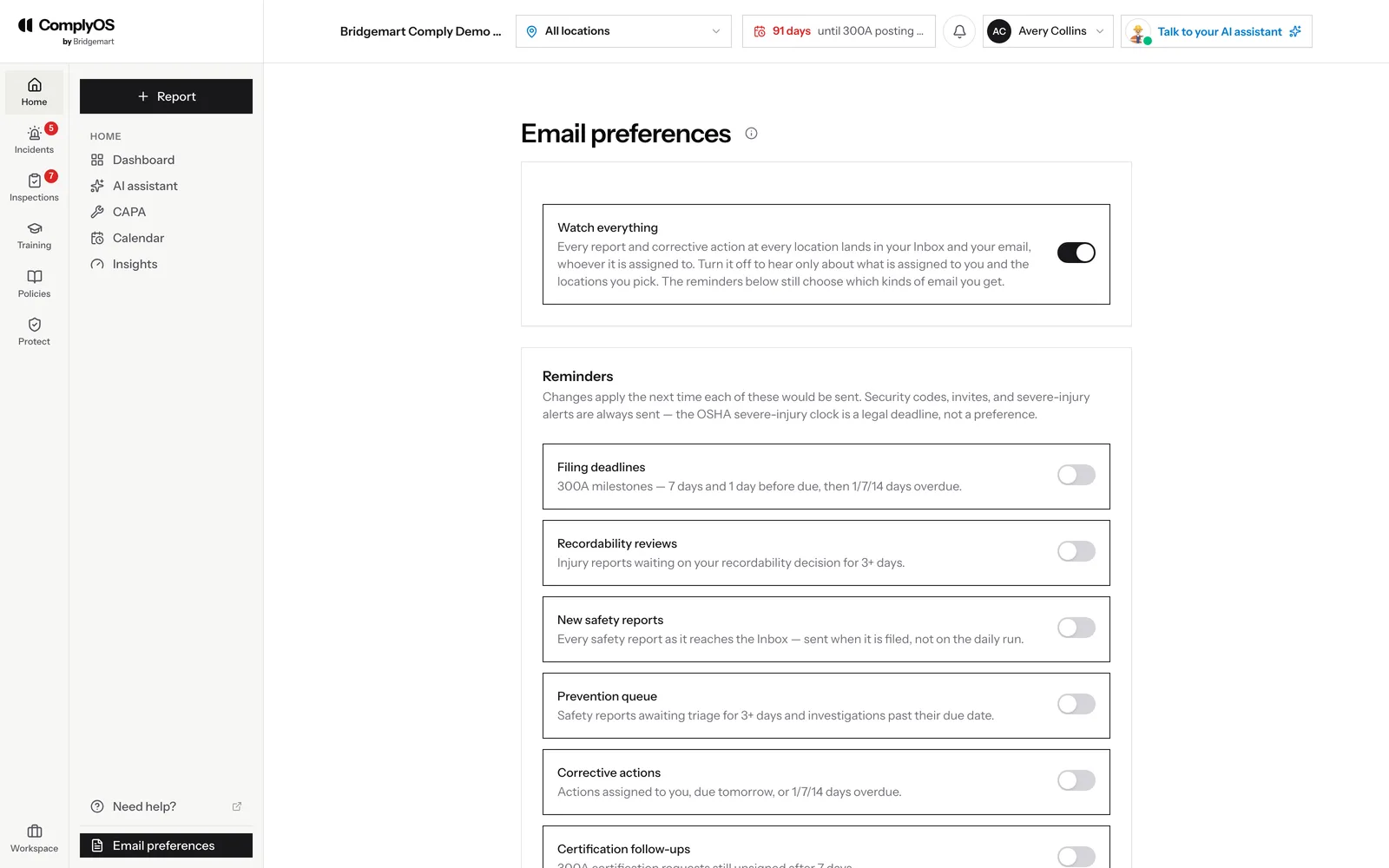
Email preferences, at the foot of the sidebar, sets what reaches your inbox. Watch everything sends every report and corrective action at every site you can see; turn it off to hear only about what is assigned to you and the sites you pick. Each reminder — filing deadlines, recordability reviews, new safety reports, corrective actions, certifications and more — can be turned on or off. Security codes, invitations and severe-injury alerts are always sent, because the severe-injury clock is a legal deadline.

Email preferences: Watch everything, then each reminder with what it covers and when it is sent

36Your account and signature

Under Settings → Personal account, add your phone number so you can be reached about a report or an inspection, and upload your signature. It is used to sign OSHA 301 forms and corrective actions; a photo of one on paper works. Until you add one, those have to be signed on paper.

Ready to set up your workspace?

Bridgemart sets up every workspace with you. Tell us about your sites and we will get you started.

Get started

Contact / Get started

Talk to us about ComplyOS for your sites.

Tell us a little about your sites and our sales team will set up a walkthrough on your own records.